
The "Arrangement Marker" feature in Logic Pro X is a powerful tool for visually managing the sections of a song and rearranging them easily. With it, you can freely place and edit song elements such as the intro, chorus and outro on the global track and simulate various structural patterns. Because sections can be swapped just by dragging, it is an innovative feature that streamlines your whole production style, from sketching a song in the early stages of composition to reviewing the structure of an existing song.
Control your song structure freely [Arrangement Marker]

Arrangement Marker is a feature that lets you set up the sections of a song
and easily rearrange their order.
It is very useful for "simulating structures" and "sketching songs",
and is likely to bring big changes to your production style.
Logic Pro X new features: article index
0_How to download
1_Overview and settings
2_Drummer
3_Flex Pitch
4_Track Stack
5_Smart Control
6_Arrangement Marker *This article
7_How to download Logic Remote
8_Logic Remote in practice
Video point: Opening Arrangement Marker
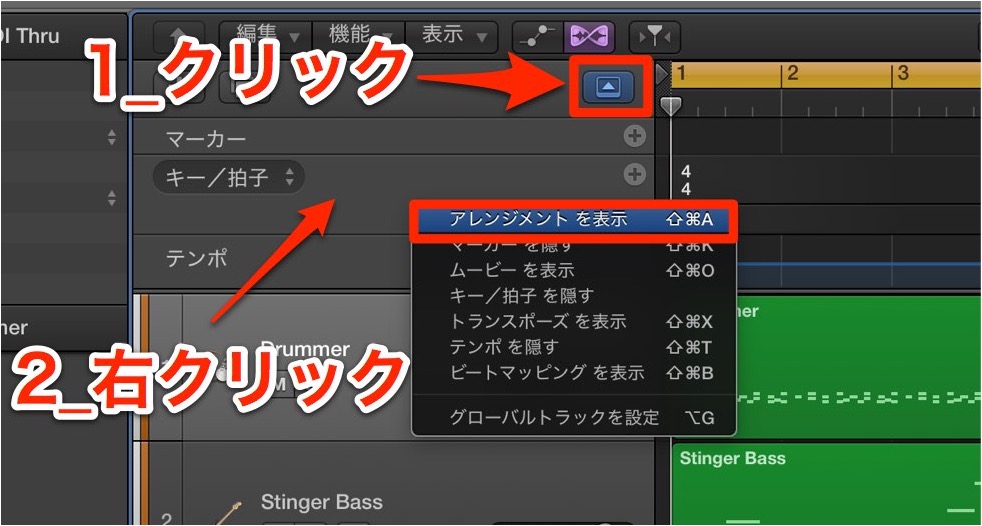
Display the "Global Tracks" from the icon outlined in red.
Use "Arrangement" among them.
Recording the structure
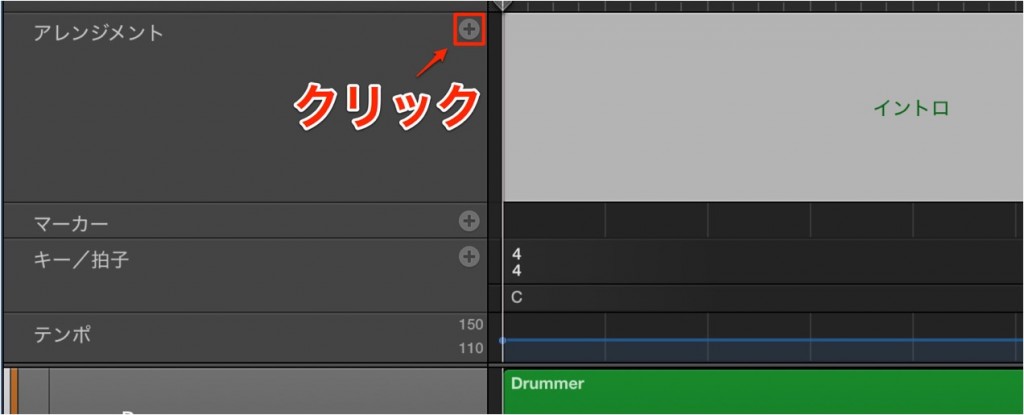
Click the "+" icon outlined in red to add sections.
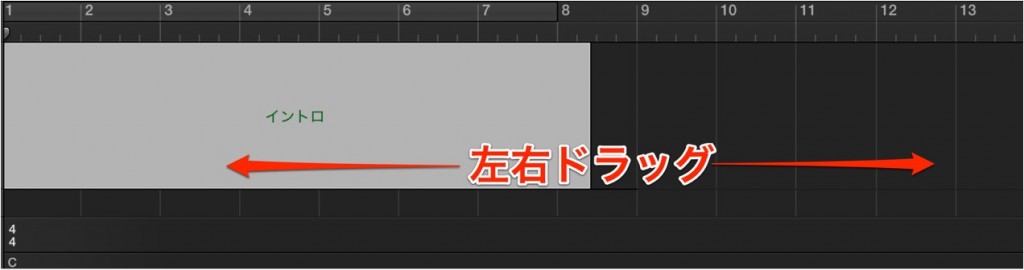
As with regions, you can drag the section range left and right to adjust it.
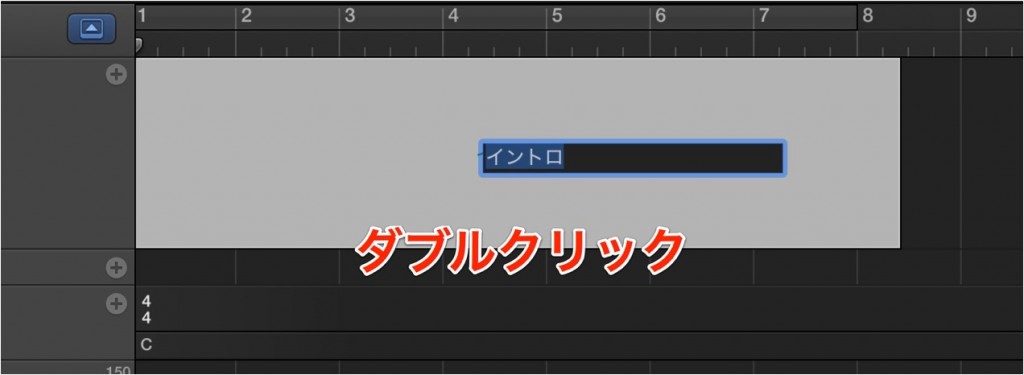
You can also "double-click" a section to name it.

Add sections to match the song like this.
Changing the structure
The method is very simple.
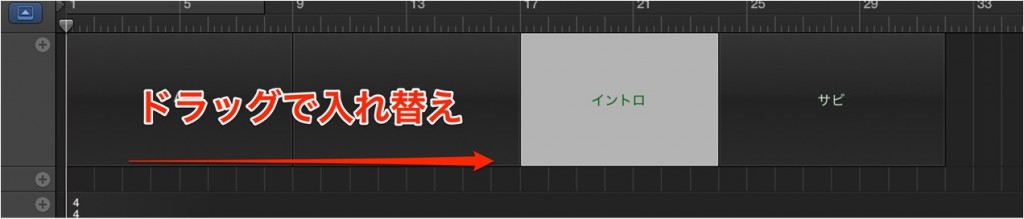
Just drag a section to where you want to move it.
This rearranges the structure.

Frequently Asked Questions
Q1. How do I open Arrangement Marker?
You need to display the Global Tracks. Click the Global Tracks icon (outlined in red) at the top of the screen and select the "Arrangement" track, and Arrangement Marker becomes available.
Q2. What should I do if I want to adjust a section's range?
As with regions, you can freely adjust a section's range by dragging left and right. You can also double-click a section to set its name.
Q3. What is the easiest way to change the order of sections?
Just drag the section you want to change to its new position. No complicated operations are needed, and you can rearrange the structure intuitively.
NEW ARTICLES
Latest English Articles











