

Studio One’s Launcher makes it easier to experiment when creating phrases. Create and edit events in the Launcher window using the mouse or record in real time from a MIDI keyboard. You can compare combinations of parts across multiple tracks, then drag finished phrases onto the timeline and switch playback modes with the Active button.
Create phrases efficiently with Launcher
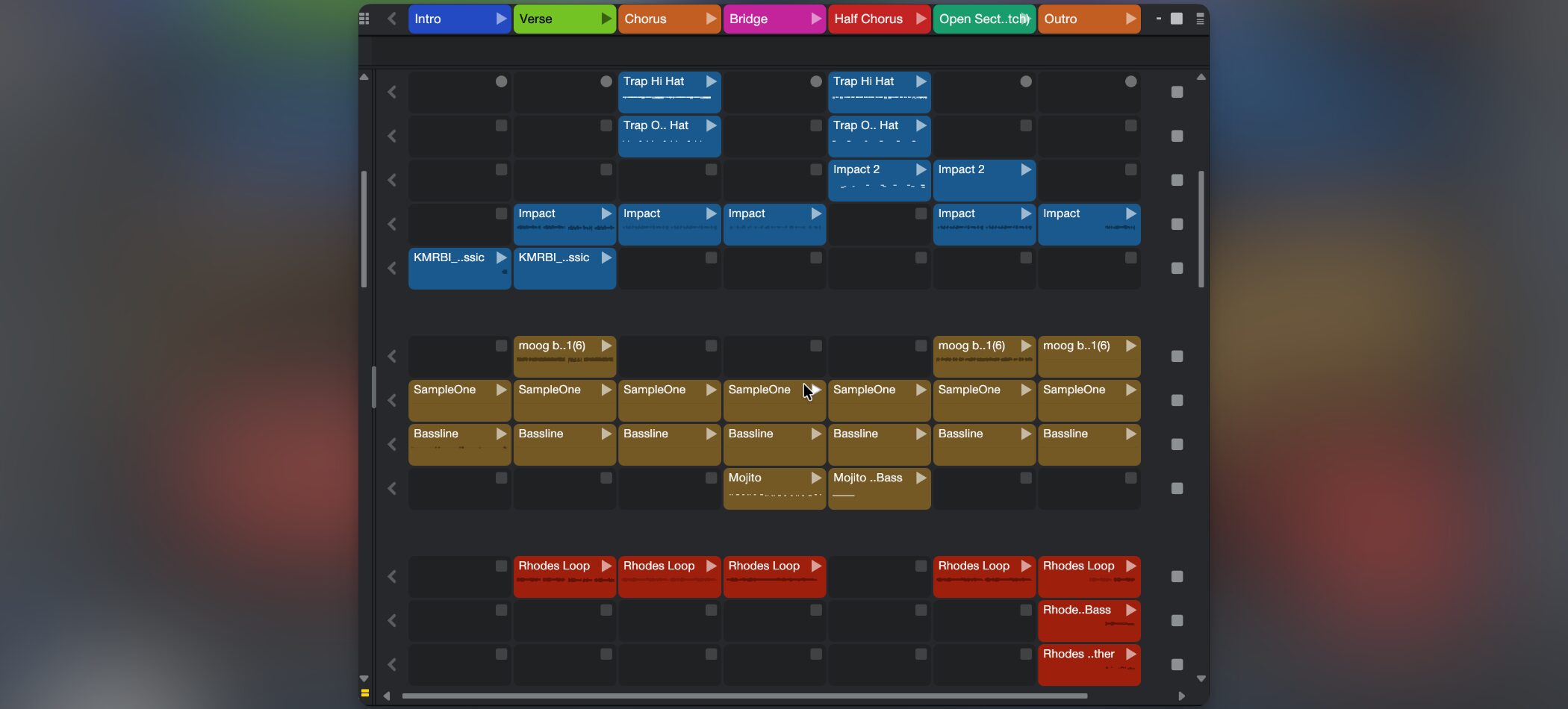
Launcher makes it easier to try out ideas while creating phrases.
Open Launcher
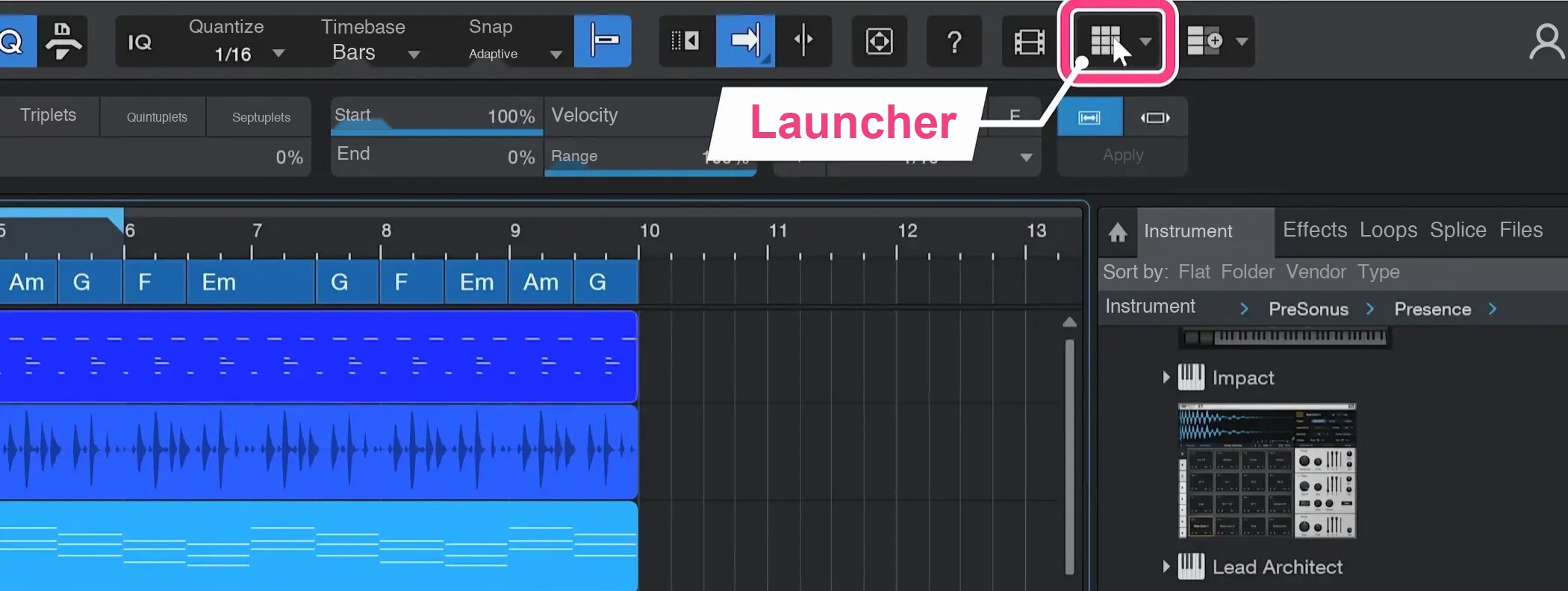
Click the Launcher button on the track you want to use.

A dedicated window appears, where you can create and edit multiple events for each track.

To resize the Launcher window, drag its boundary.
Choose a size that suits the work you are doing.
Create and edit events in Launcher

To create an event, double-click the desired cell.
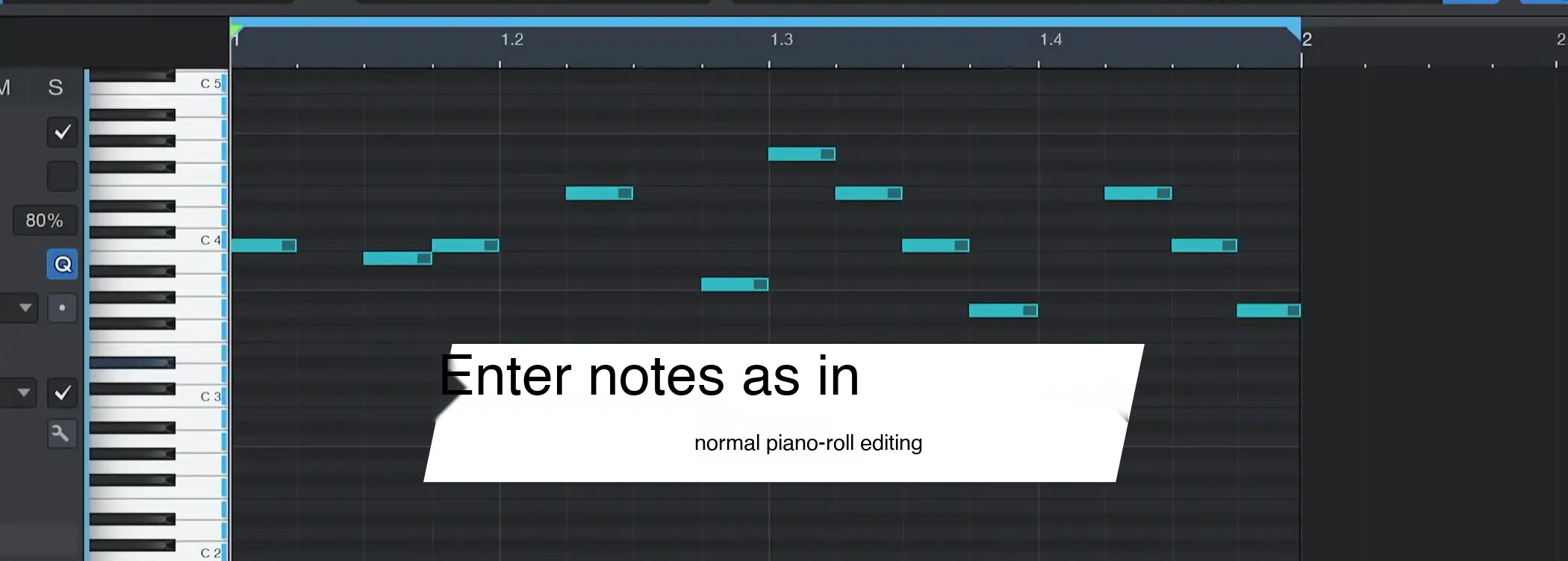
Enter notes in the new event just as you would in the regular piano roll.

Use the Play button at the upper right of Launcher to audition the event.
Playback runs the Song and Launcher in sync.
The event repeats over its specified range, which defaults to one bar.
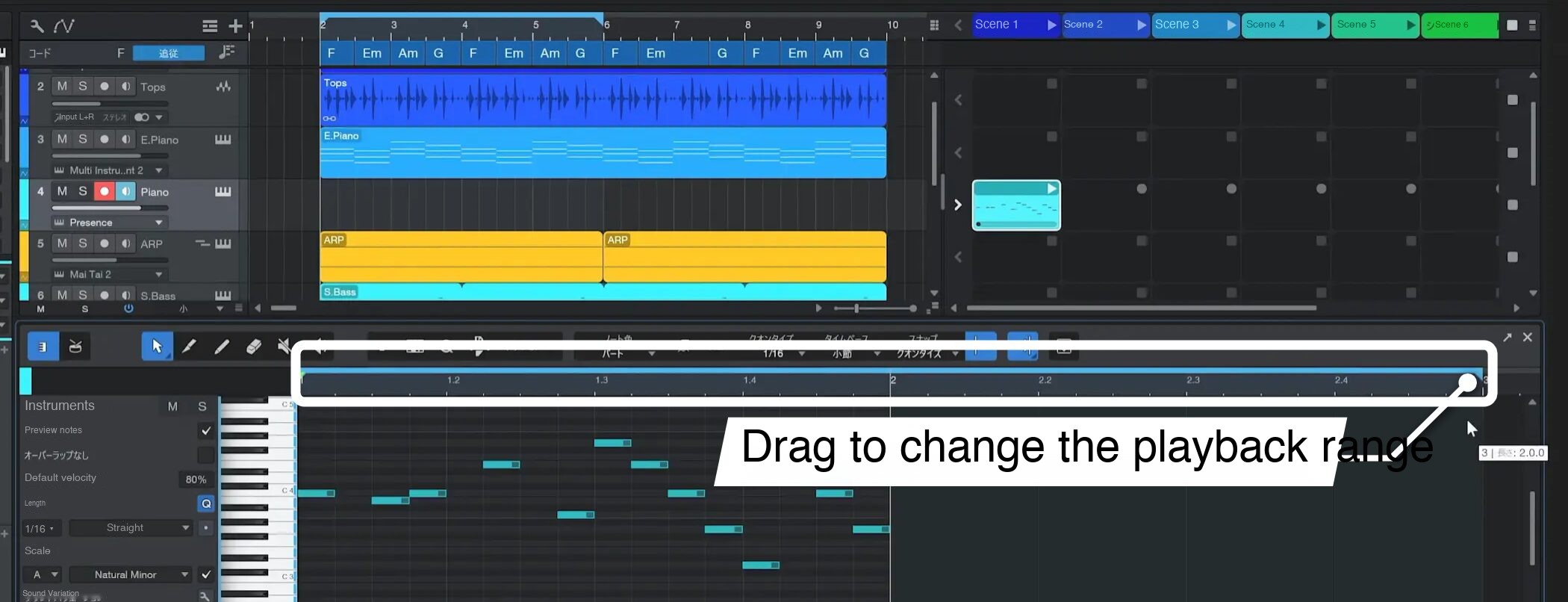
You can change the playback range by dragging the bar at the top of Launcher.
This lets you repeatedly audition just the part of the phrase you want.
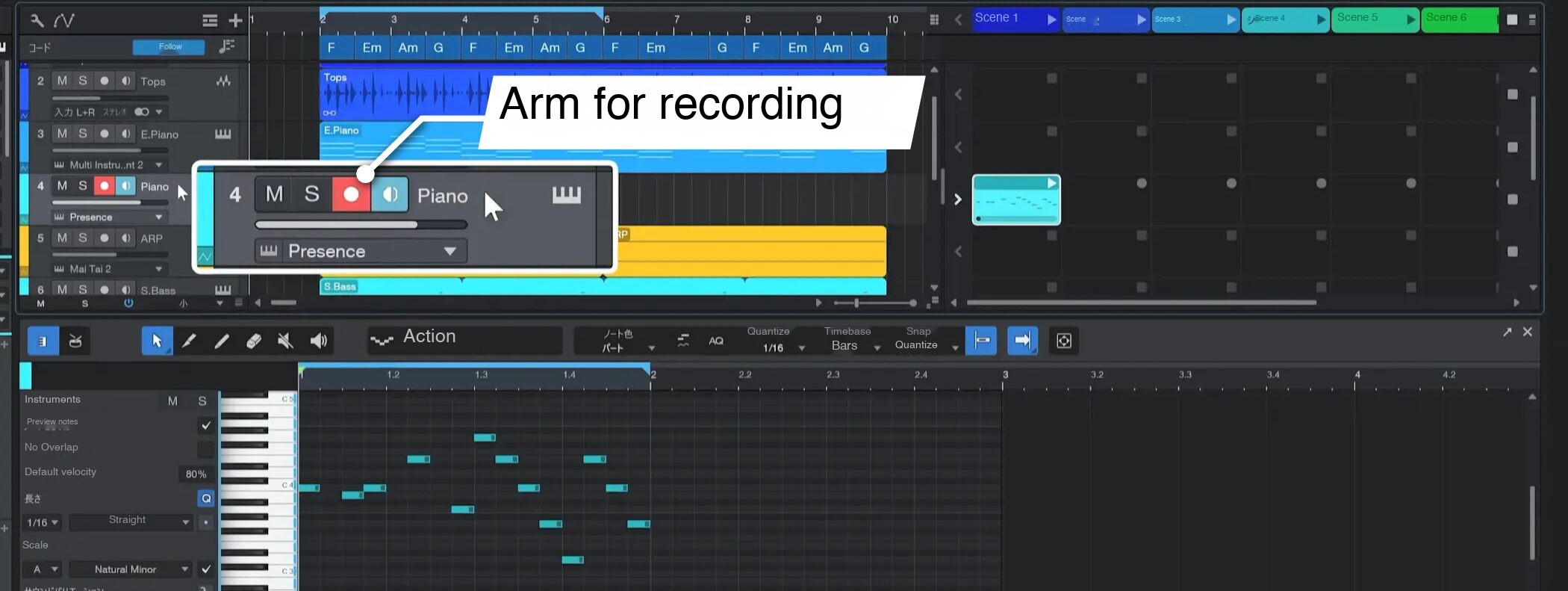
In addition to entering notes with the mouse, you can record in real time.
First, arm the track for recording.
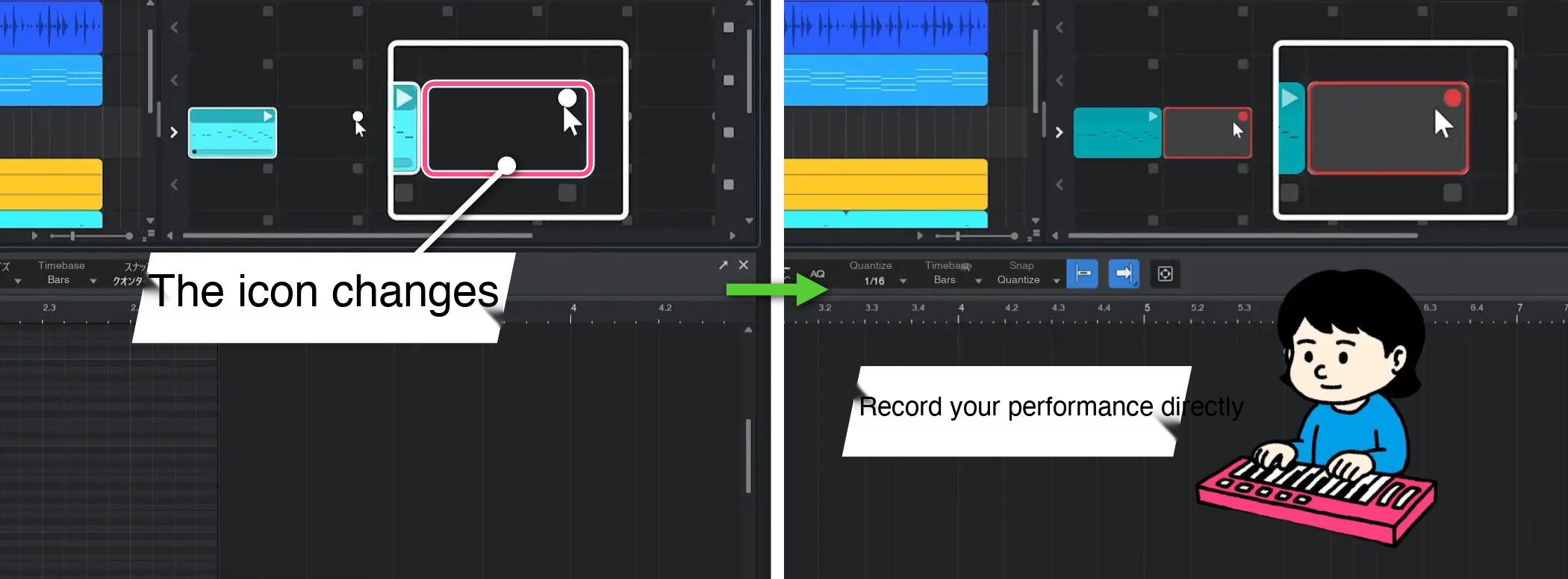
Empty cells show recording icons, and you can record a performance directly from a MIDI keyboard.
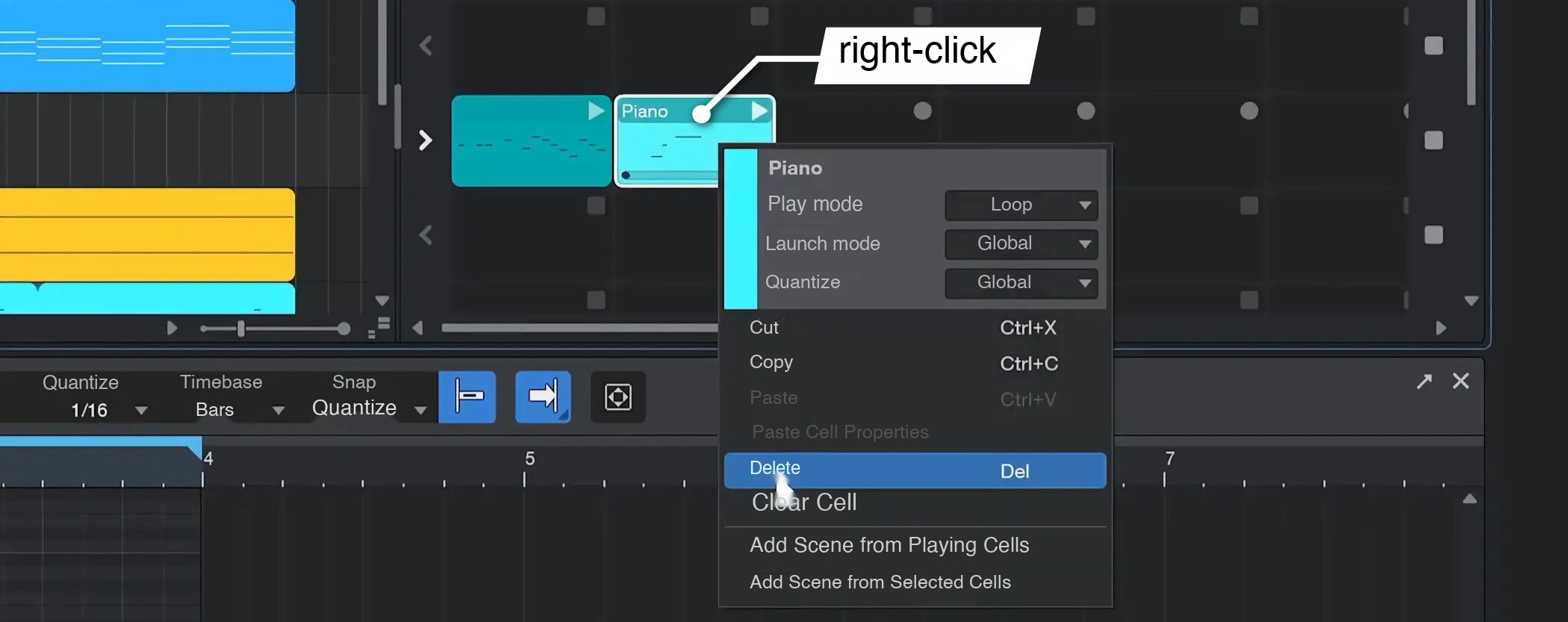
To remove an event, right-click it and choose Delete.
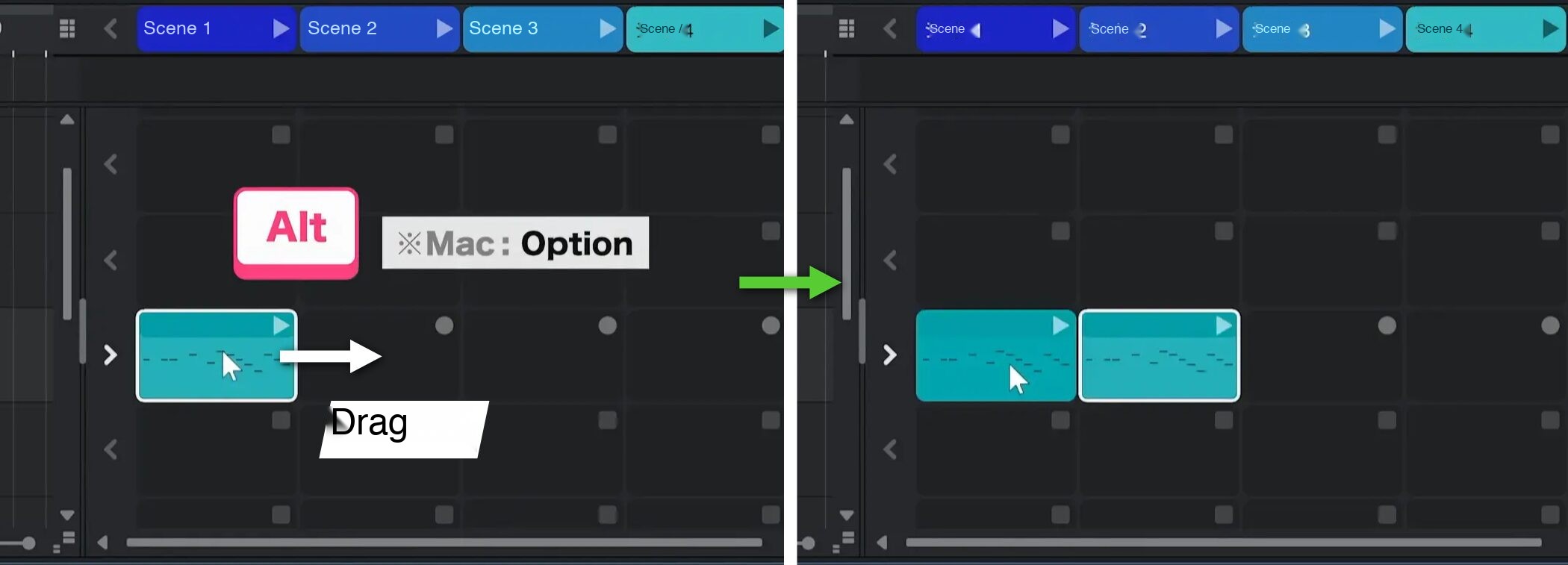
To duplicate an event, drag while holding Alt, or Option on Mac.

This creates an identical event that you can edit further.
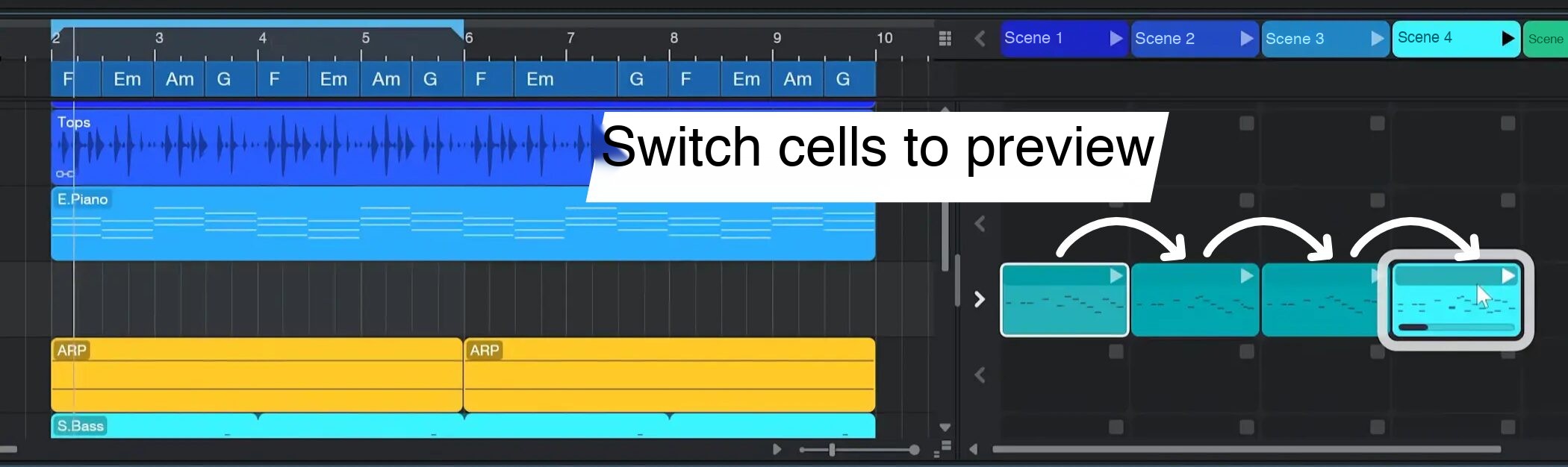
After creating multiple events, switch cells while the Song plays to audition them.
Move phrases to the timeline and switch playback
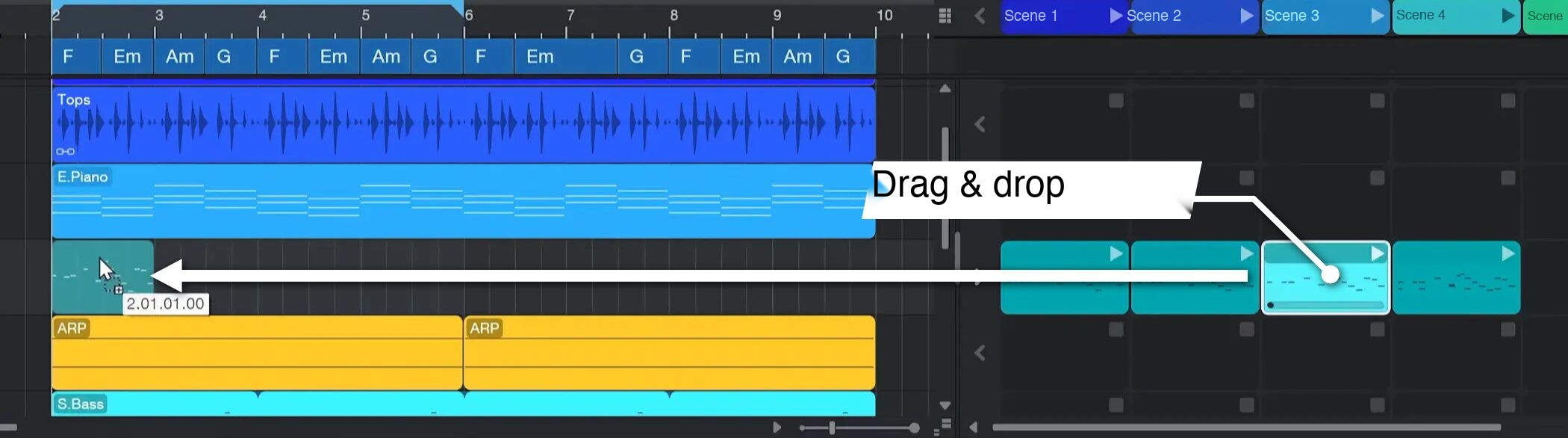
To use a finished phrase on the timeline, drag and drop the event from its cell onto the timeline.
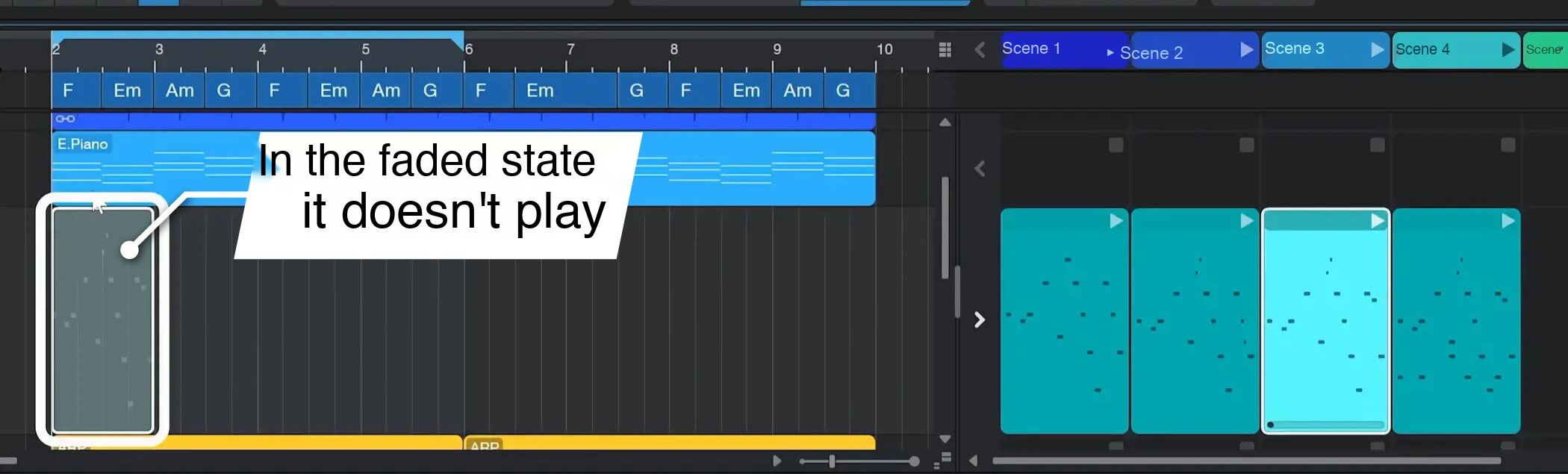
Immediately after the move, the event appears faded and does not play.
This is because either Launcher or the timeline can play at a time.
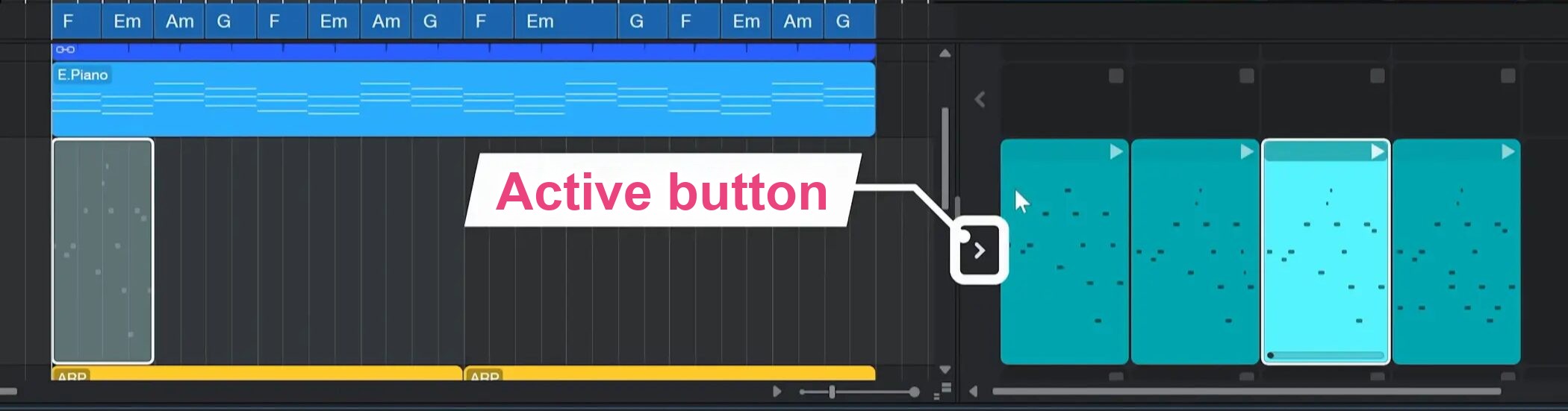
Use the Active button in the center to switch between Launcher and timeline playback.

Click it to switch between Launcher mode and normal editing mode.
Use Launcher with multiple tracks
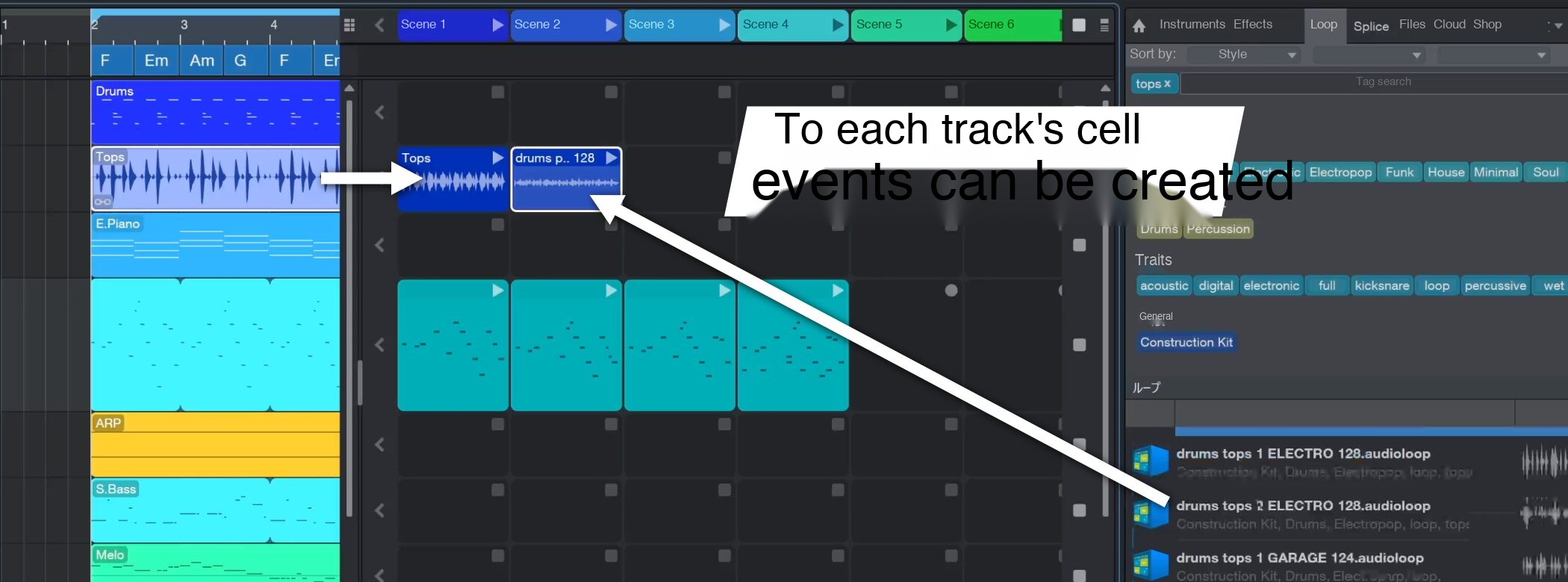
As noted above, Launcher works across all tracks, not just one.

Create events on multiple tracks and click the play button for a column to play all events in that column together.

This makes it easy to audition and compare combinations of instrument parts without repeatedly rearranging the timeline.
Frequently asked questions
Q1. When is Launcher useful?
Use it to quickly audition and compare multiple phrase ideas, such as melodies or drum patterns, while composing.
Q2. How do I put a Launcher event on the timeline?
Drag the finished event from its cell to the timeline, then click the central Active button to switch from Launcher to normal timeline playback.
Q3. Can I play events from several instrument tracks at once?
Yes. Click the play button for a column to play its events across the tracks together and audition combinations of parts.
NEW ARTICLES
Latest English Articles











