

Fender Studio Pro includes guitar instruments and effects for professional music production. This guide walks through creating an account on the official site, installing and activating the software, and setting up the included content. It covers downloads for Mac and Windows, obtaining a product key, the Mac drag-and-drop installation and Fender Connect activation. It also explains how to store the large content library on an external drive when space is limited.
Creating an Account and Downloading the Installer
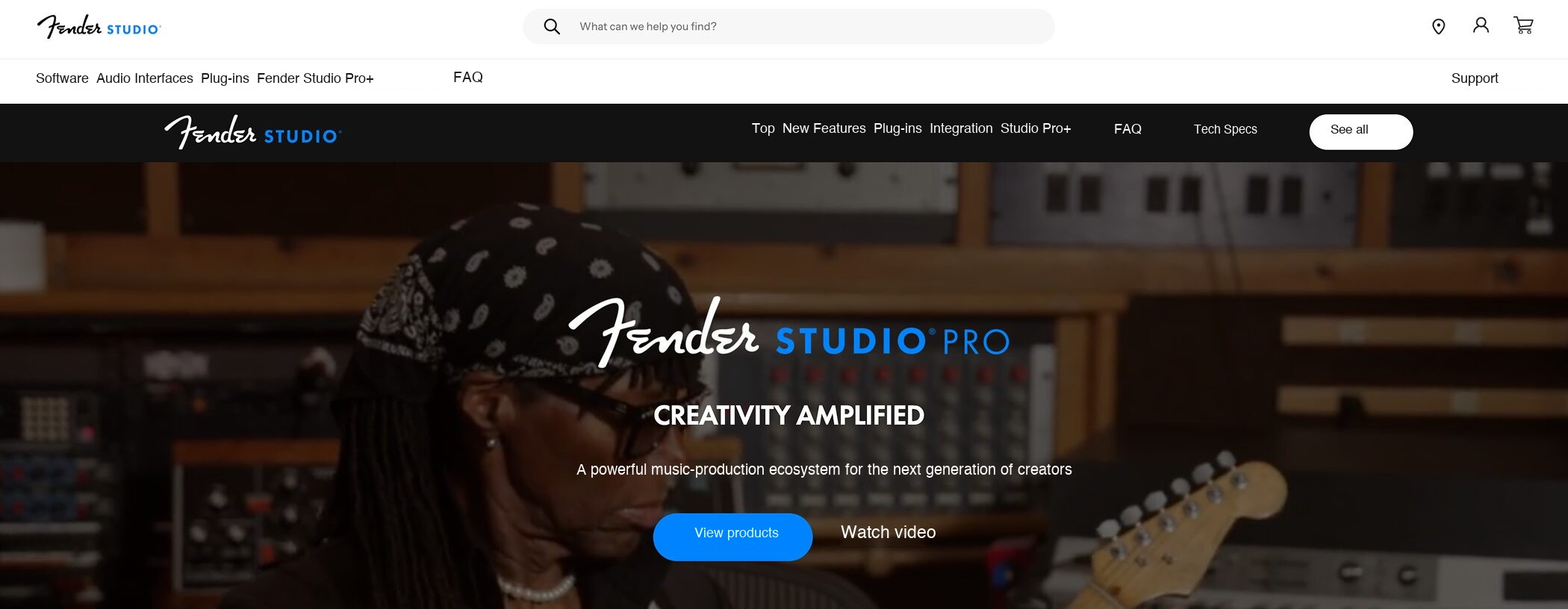
Visit the official Fender Studio Pro website.
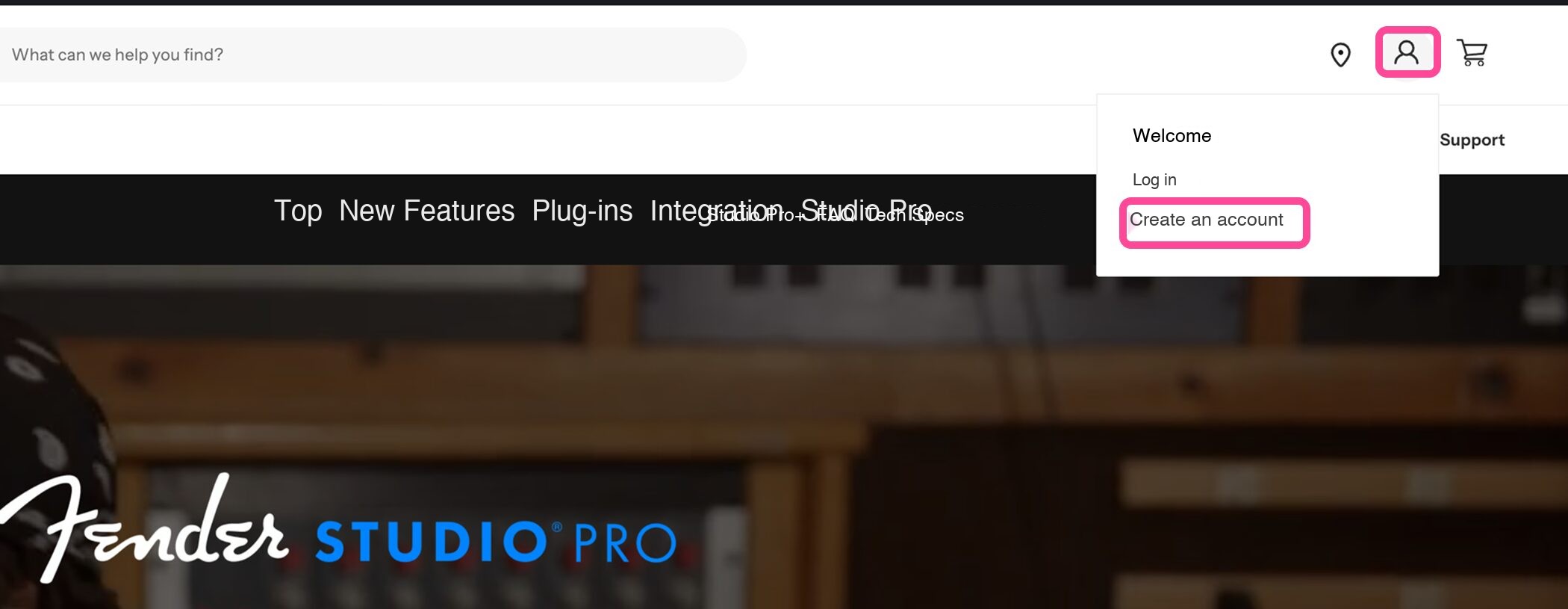
Click the person icon at the upper right. If you already have an account, select “Log In.”
If you do not have one, select “Create Account.”

To create an account, enter your details on the sign-up screen.
You can also sign in with Apple, Facebook or Google.
When you have entered your details, click “Create Account.”
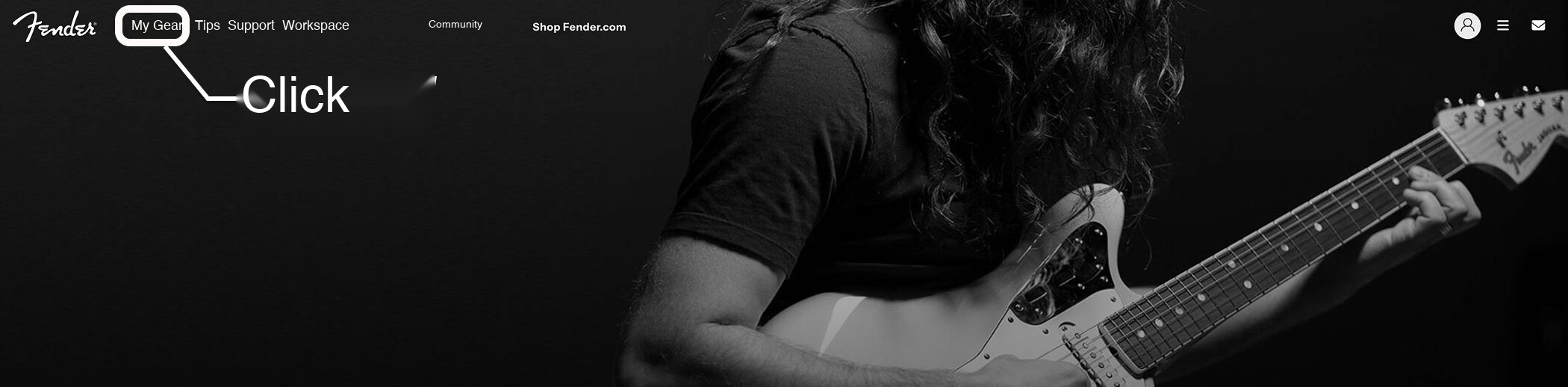
After creating your account, sign in with your registered email address and password, then click “My Gear” at the top of the screen.
If My Gear is not visible, click the person icon.

Click “Fender Studio Pro 8.”

On the left side of the product page, click the download button for your operating system to get the installer.
Your product key is displayed at the top of the page.
Activation may happen automatically, but copy the key beforehand in case you need to activate manually.
Installation
Once the installer has downloaded, install Fender Studio Pro on your computer.
The installation steps shown here use the Mac version.

Double-click the downloaded file.
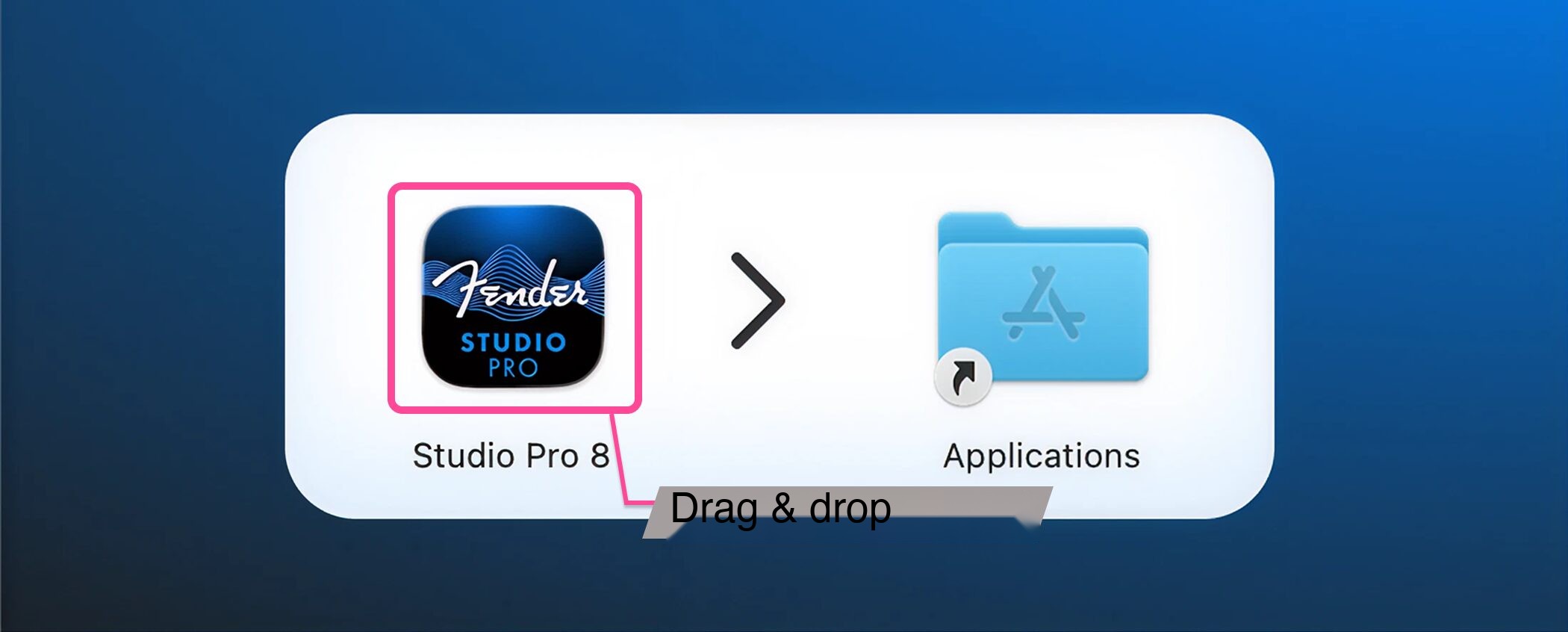
When the window shown above opens, drag the Fender Studio Pro 8 icon into the Applications folder on the right.
The copying process starts automatically.
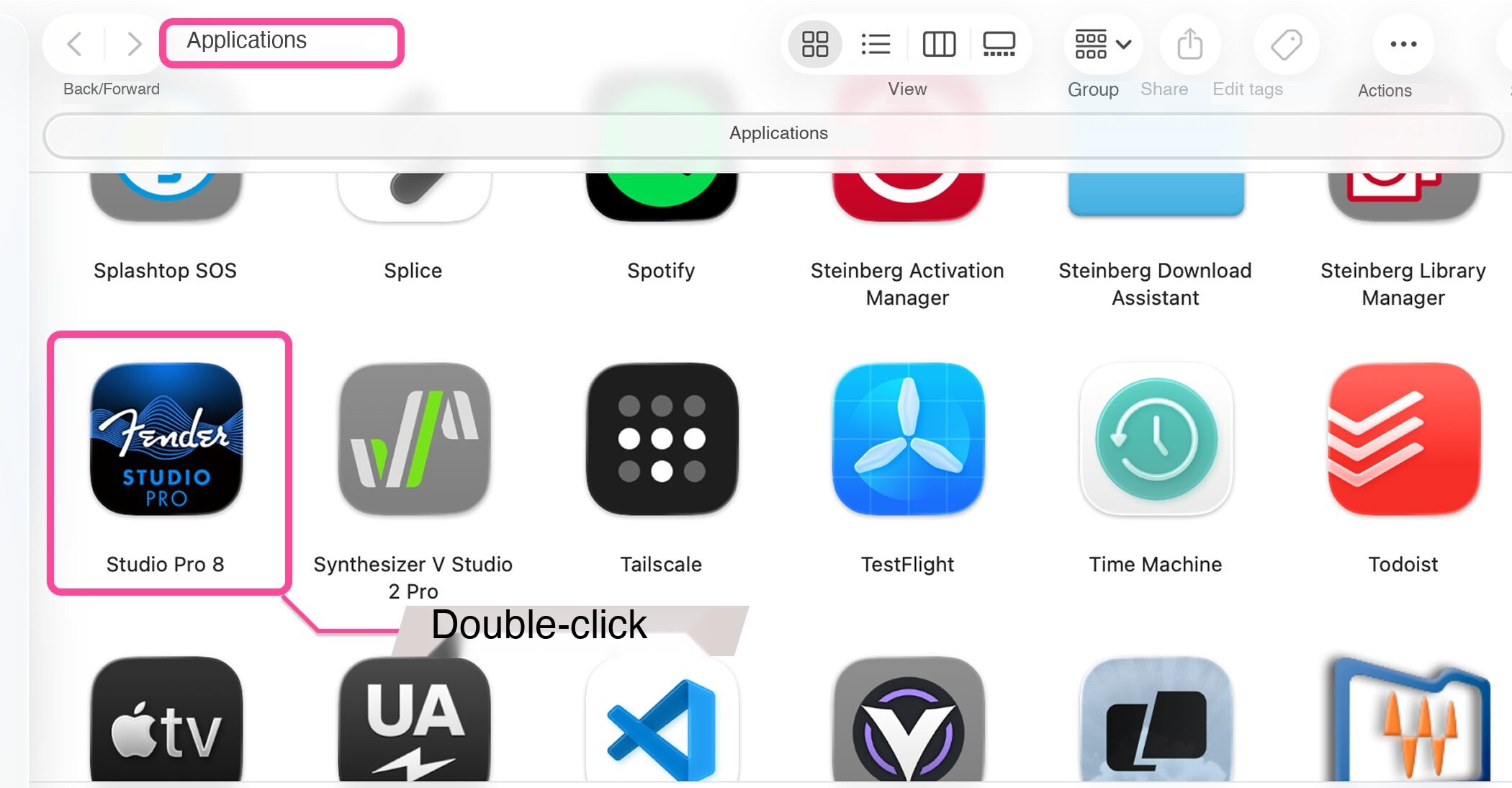
After installation, double-click the Fender Studio Pro 8 icon in Applications to launch it.
First Launch and Activation

When you launch Fender Studio Pro 8 for the first time, a license agreement appears.
Review it and click “Agree.”

The Fender Connect sign-in window then appears.
Enter your registered email address and password and click “Sign In.”

If the screen above appears, select either “Fender Studio Pro+” (subscription) or “Purchased Studio Pro” (perpetual license), and enter your product key.
Click “Activate” to activate the software.
Fender Studio Pro will start.
Installing the Included Content
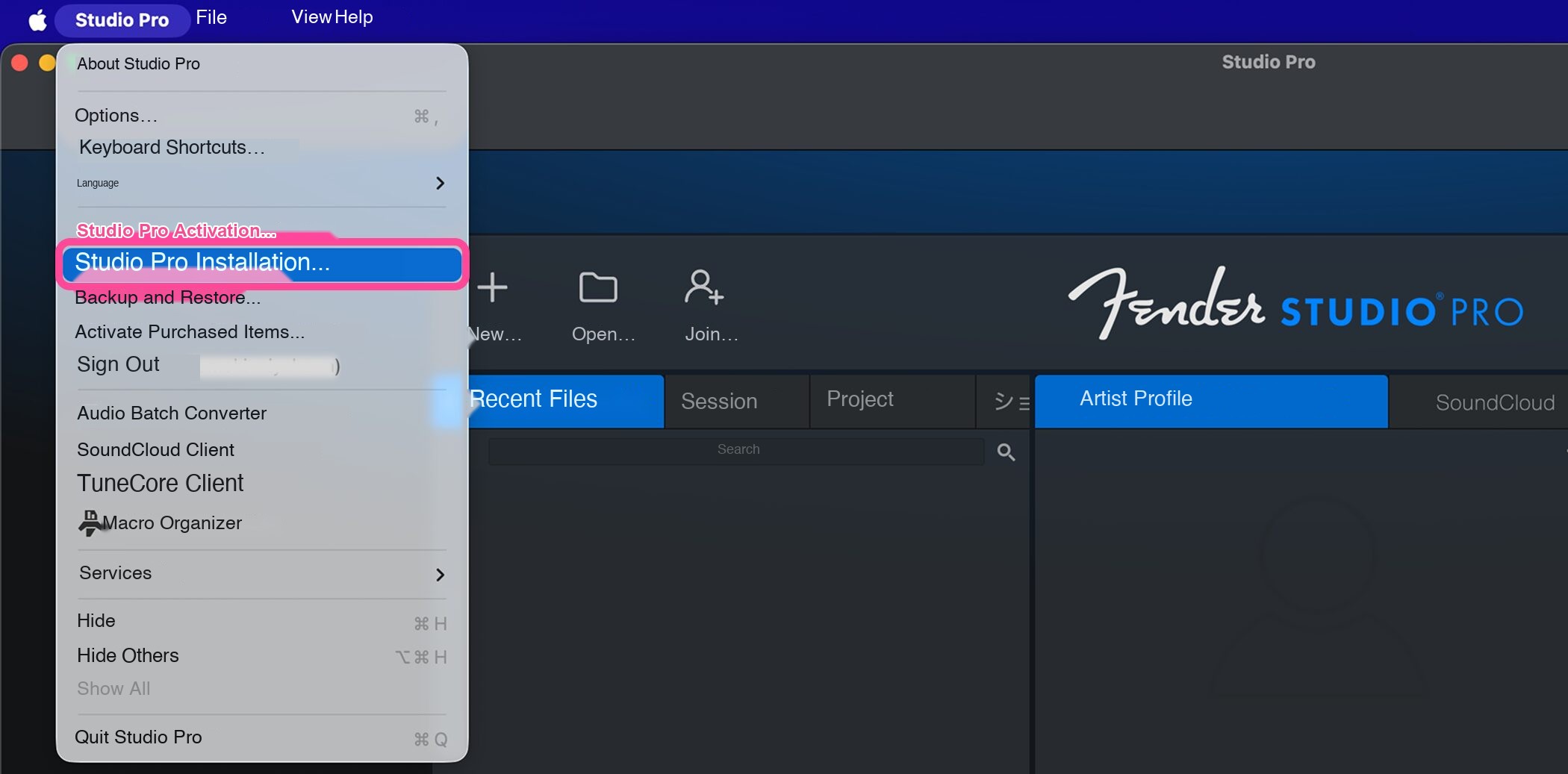
Select “Studio Pro Installation” from the Studio Pro menu.
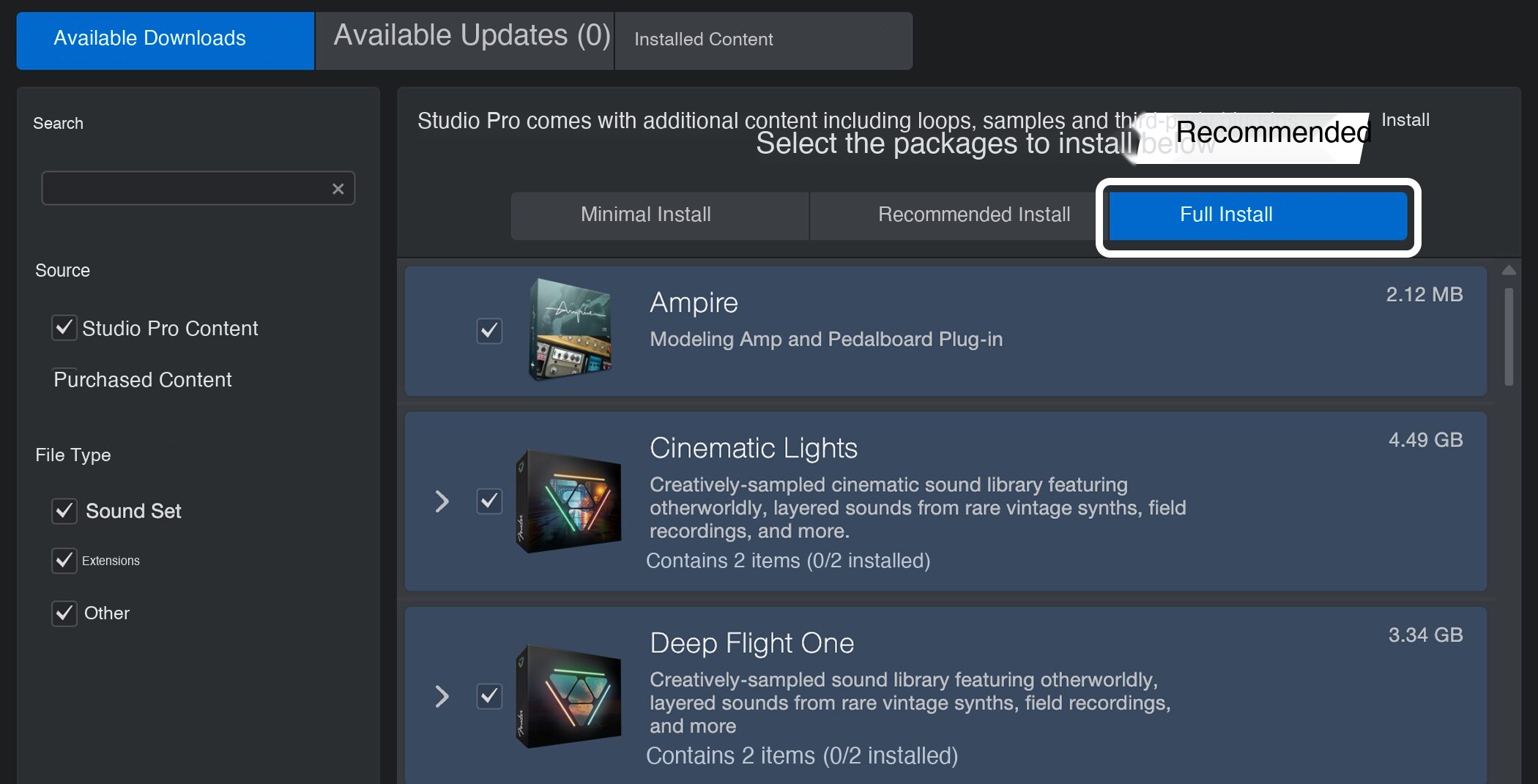
The installation screen offers three choices: Minimal, Recommended and Full Installation.
Generally, Full Installation is recommended because it provides the widest range of production options.
Checking Installation Settings
The included content is large. If your computer has limited free storage, you can change the destination to external storage.
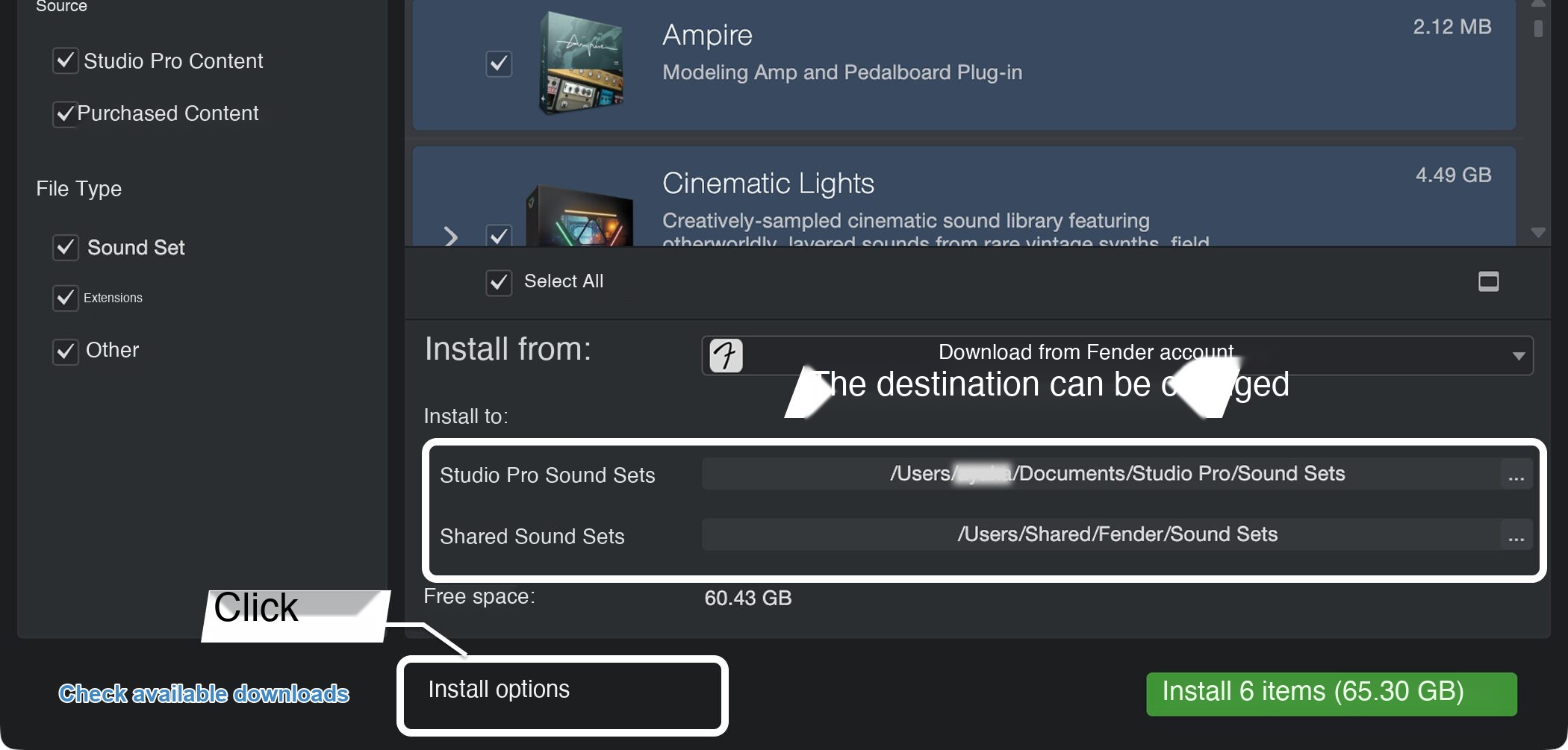
Click “Installation Options” to change the locations for “Studio Pro Sound Sets” and “Shared Sound Sets” to external storage.
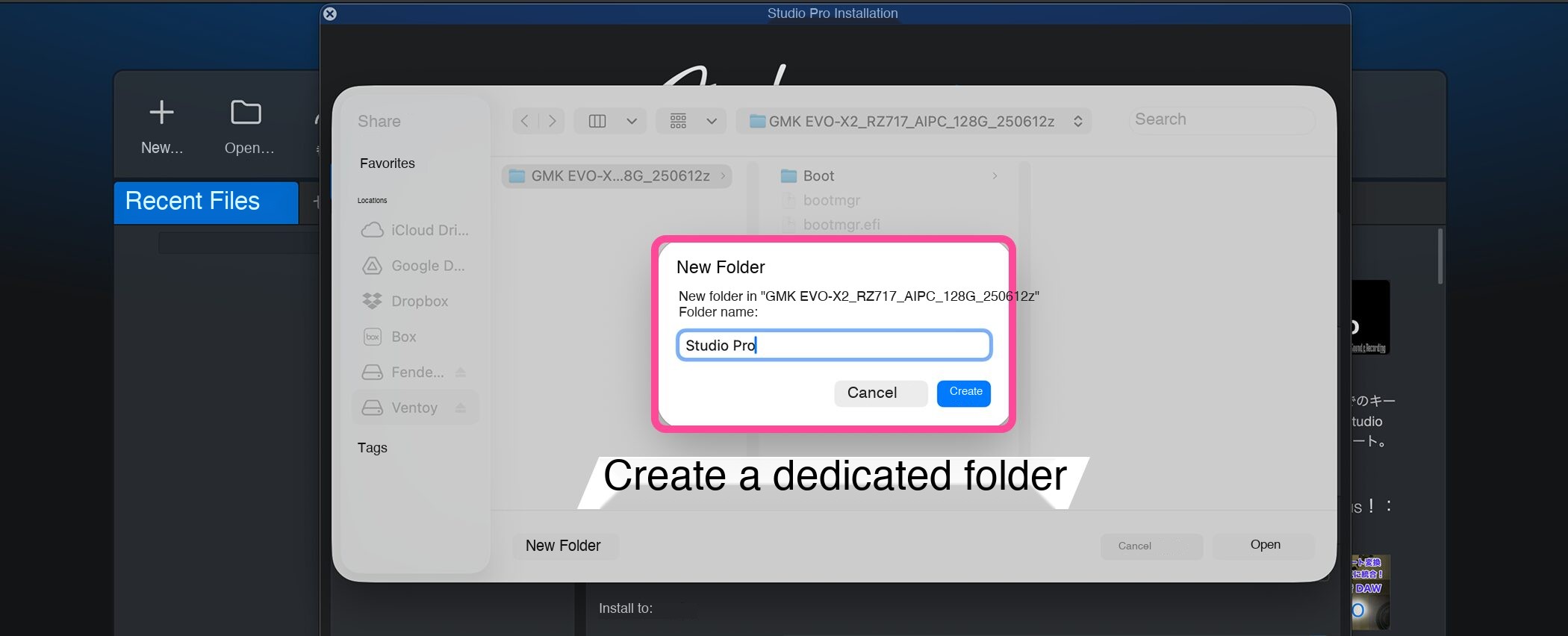
You can save directly at the top level of the external drive, but creating a “Studio Pro” folder and saving inside it makes files easier to manage.

Likewise, change the shared sound set location to the Studio Pro folder on the external drive. Once configured, click “Install” to begin.
Installation may take considerable time depending on your internet connection speed.
Frequently Asked Questions
Q1. How do I create a Fender Studio Pro account?
Visit the official Fender Studio Pro website and select “Create Account” from the person icon at the upper right. You can sign up with an email address or an Apple, Facebook or Google account. After creating the account, sign in with your email address and password.
Q2. Is there anything I should check before downloading the installer?
When downloading from My Gear, we recommend copying the product key shown at the top of the page beforehand. This saves time if manual activation is needed.
Q3. How do I install all Fender Studio Pro content?
Open the installation screen from the Studio Pro menu and choose Full Installation for the widest range of production options. If storage is limited, you can change the destination to an external drive under Installation Options.
Q4. What is distinctive about the Mac installation process?
After double-clicking the downloaded file, drag the Fender Studio Pro 8 icon into the Applications folder. Copying starts automatically, and you can launch the software from Applications once installation is complete.
Q5. What happens on first launch?
When Fender Studio Pro 8 starts, review the license agreement and click Agree. Then sign in to Fender Connect with your registered email address and password, select the subscription or perpetual license, and activate using your product key.
NEW ARTICLES
Latest English Articles











