
When using the Ultrabeat step sequencer in Logic Pro, learning how to adjust parameters after creating a pattern lets you produce more complex and appealing beat patterns. This article explains concrete steps that even beginners can put into practice, from enabling parameter steps and adding detailed sound changes such as pitch, volume and filter, to copying and pasting patterns. Mastering these techniques lets you evolve a simple beat into a catchy drum pattern with changes over time, greatly expanding the range of your DTM production.
Control parameters freely in time with the rhythm
After creating a pattern in the previous section,
we finely adjust the parameters of that pattern.
This lets you add effects such as complex beats and changes in sound over time,
making your rhythm pattern catchier and more appealing.
Ultrabeat video index
- 1Loading and saving kits
- 2Step sequencer 1
- 3Step sequencer 2 *This article
- 4Creating a kick
- 5Creating a snare and hi-hat
- 6Using side-chaining and samples
Selected Questions and Answers from the YouTube Video

This was a huge help. There are no Logic tutorial videos like this in China at all. I'd like to repost this with Chinese subtitles on a Chinese video site (bilibili). Would that be OK?

Thank you very much for such a kind comment! However, our company is not the sole copyright holder of these videos, so we ask that they not be reposted on other media or platforms. We are very sorry we cannot give you a better answer, and we appreciate your understanding.
Video point: Turning parameter steps on
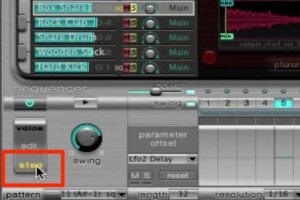
To record parameters,
click "step" in the area outlined in red.
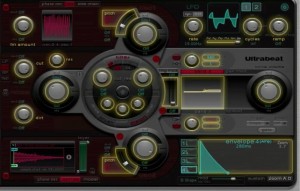
The screen changes like this.
It looks very cool.
You can write in the parts lit in yellow one step at a time.
Video point: How to write parameters
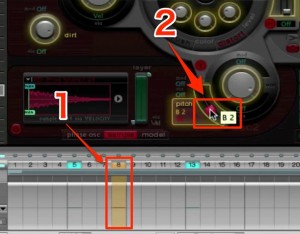
- 1_Click the step where you want to change a parameter
- 2_Set the parameter you want to change
That's all there is to it.
Repeating this for each step lets you add parameter changes.
"Pitch", "volume", "filter": anything goes!!
Video point: Copying and pasting sequencer patterns
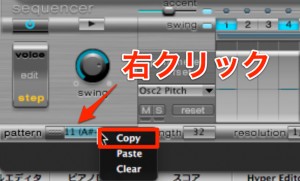
Right-click the pattern menu → select "Copy".
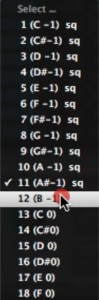
Next, select an empty pattern without "sq".
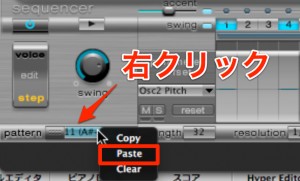
Right-click the pattern menu again → select "Paste".
This copies the pattern.

Frequently Asked Questions
Q1. How do I enable parameter steps in Ultrabeat?
To record parameters, click the "step" button in the area outlined in red on the step sequencer screen. Once enabled, you can write parameters one step at a time in the parts lit in yellow.
Q2. What parameters can I change in the step sequencer?
You can change various parameters such as pitch, volume and filter. By clicking each step and setting the parameter you want to change, you can create complex beat patterns whose sound changes over time.
Q3. How do I copy a sequencer pattern I created and use it elsewhere?
Right-click the pattern menu and select "Copy", then select an empty pattern, right-click again and select "Paste". This duplicates the pattern so you can reuse it in several places.
NEW ARTICLES
Latest English Articles











