
The "Pitch Correction" feature in Logic Pro is a handy tool for easily correcting the pitch of vocal tracks. Just specify the song's key and scale, and off-pitch notes are corrected automatically; its low latency means you can even use it while recording. By adjusting the correction speed and using manual settings, you can also handle cases where you want to keep notes outside the scale, and by controlling it in real time from a MIDI device you can use it in live performance. As a feature that improves the quality of vocal recordings and the efficiency of production at the same time, it is highly valuable for everyone from DTM beginners to advanced users.
"Pitch Correction": easily tune vocal pitch in Logic
Using the "Pitch Correction" plug-in included with Logic,
you can easily correct the pitch of a vocal track.
Its latency (sound delay) is also low,
so you can record vocals while "Pitch Correction" is applied.
It gives you the illusion that you have become a better singer, so recording goes along in a good mood (lol).
Video Tutorial
This time we asked one of our staff members to explain.
Launching Pitch Correction
Launching it is very easy.
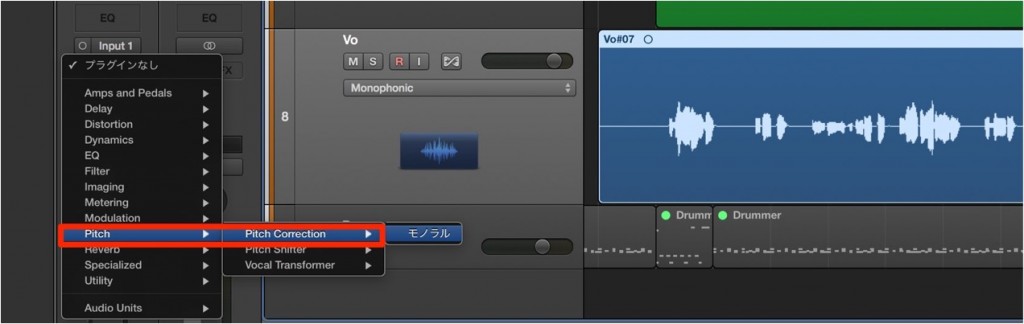
Select "Pitch Correction" in an insert slot on the vocal track.
Pitch Correction settings
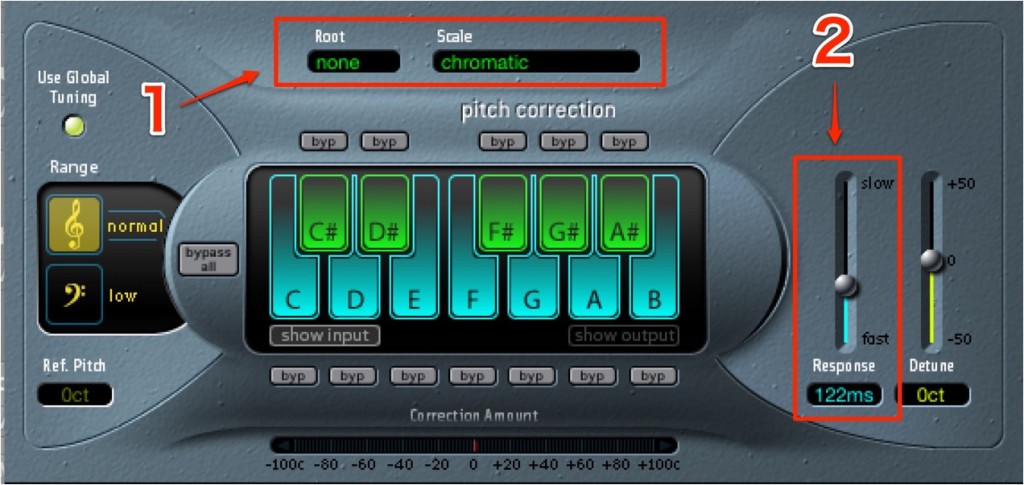
- 1_Specify the song's "key" and "scale".
Notes that fall outside these will be forcibly corrected. - 2_Set the correction speed.
Toward "Fast" at the bottom, pitch is corrected quickly, so you can also create a "robotic" (Auto-Tune style) effect.
Manual settings in Pitch Correction
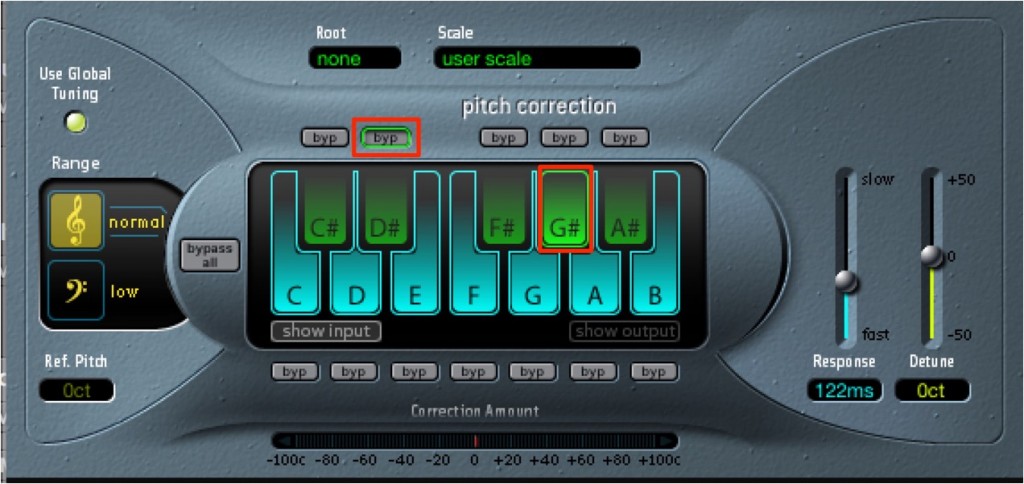
Depending on the song, you may use notes "outside the scale".
In that case, click the notes you want to use to "light them up".
Pitch will then also be moved/corrected to the notes you have lit up.
"byp" stands for "bypass";
notes lit up here will not be pitch corrected.
Real-time control from a MIDI device
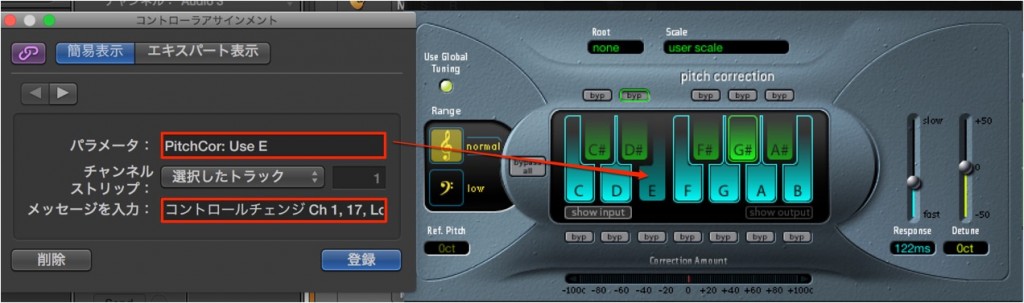
You can control the on/off state of the keyboard-specified corrections above in real time.
This is also useful in live performances.
Shortcut
Press "Command + L".
After clicking the "key" you want to control/toggle,
play the corresponding note on your actual MIDI keyboard.
Pressing the assigned MIDI key now toggles it between
"lit (on)" and "unlit (off)".

Frequently Asked Questions
Q1. Doesn't Logic Pro's Pitch Correction make vocals sound unnatural?
You can get natural correction by adjusting the correction speed. A slower speed gives a natural result, and setting it to "Fast" lets you use it as a special effect. You can adjust it to suit the song.
Q2. Is latency (delay) a problem when using Pitch Correction during recording?
Pitch Correction is designed for low latency, so you will hardly notice any delay even during real-time recording. You can hear the corrected vocal while you sing, so recording goes smoothly.
Q3. What should I do if I want to use notes outside the scale?
In the manual settings, click the notes you want to use to light them up, and pitch correction to those notes is enabled. Click "byp" to bypass notes you do not want corrected.
Q4. Can I control Pitch Correction from a MIDI keyboard?
Yes. Open the settings with Command+L and assign keys on your MIDI keyboard, and you can switch corrections on and off in real time during a live performance.
NEW ARTICLES
Latest English Articles











