
When connecting several MIDI keyboards or devices to Logic Pro X, you can use the MIDI Environment to assign each device to a different software instrument. With this setup you can produce sound quickly during live performance or production without selecting tracks or arming them for recording, greatly increasing your freedom when playing. You can also use a specific device as a guide instrument, allowing you to respond flexibly even in a complex production environment.
For people with multiple MIDI keyboards and devices
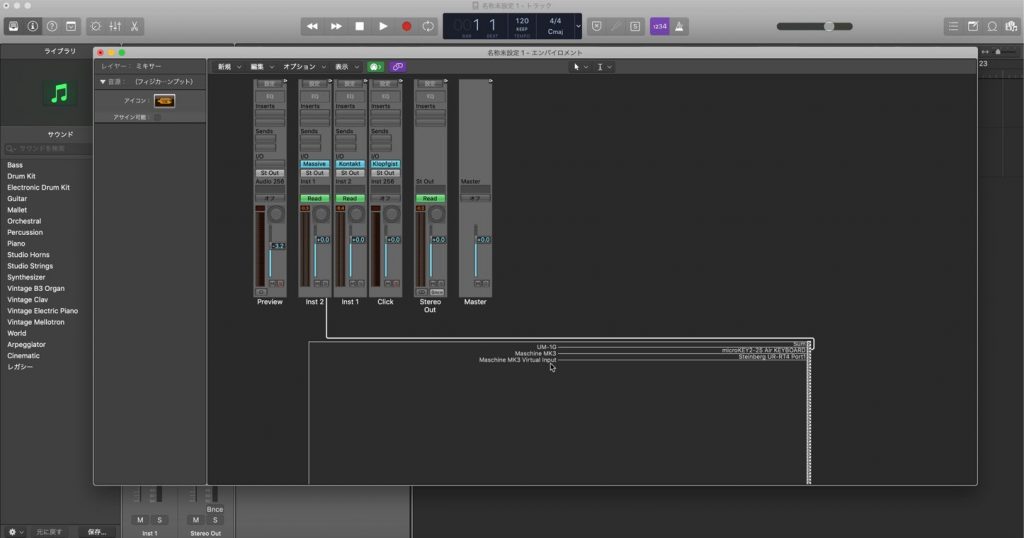
Here we explain how to set up different MIDI keyboards and devices to play different MIDI instruments in "Logic Pro X".
Specifying which instrument each MIDI keyboard plays makes this setup useful for live performance too.
Assigning MIDI devices per software instrument in Logic X
Selected Questions and Answers from the YouTube Video

I tried to do this, but the "Open MIDI Environment" item does not appear in the Window menu. Why is that...

It appears when you check MIDI under Advanced Tools in the preferences. https://app.box.com/s/1djigdg6vywhkd5kdbnndgh6muw0xcxg
Assignment control with the Environment
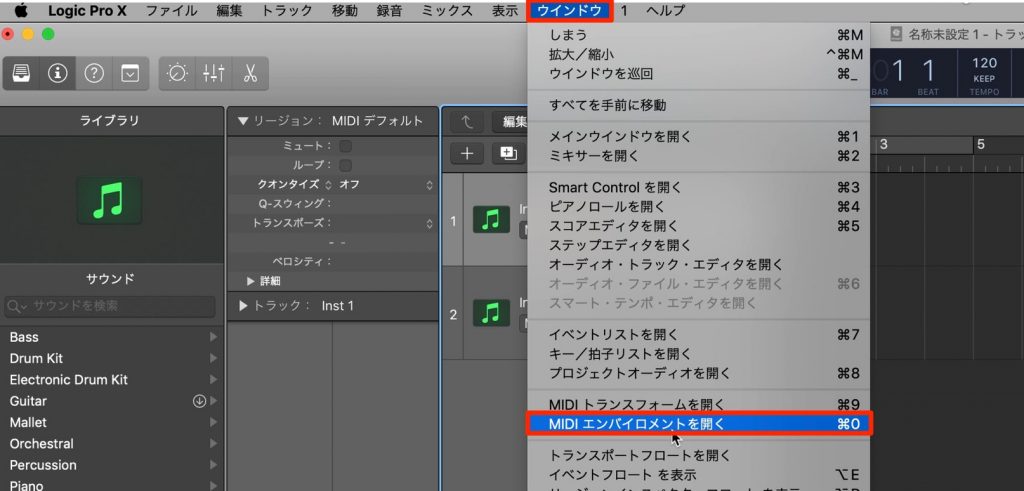
Select "Open MIDI Environment" from "Window" in the top menu.
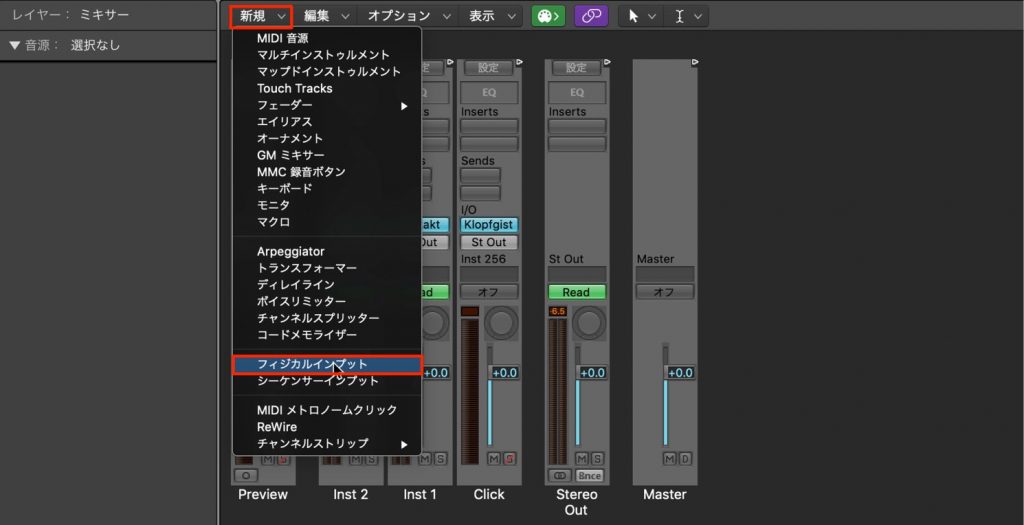
In the MIDI Environment window that appears, select "New" → "Physical Input".
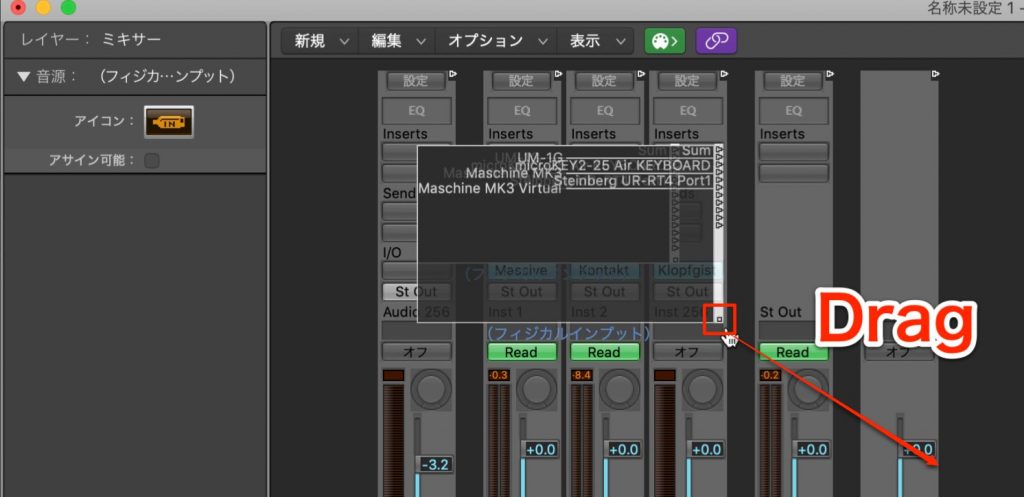
The Physical Input is displayed like this.
If it is displayed too small, you can resize it by dragging the bottom right corner of the window.
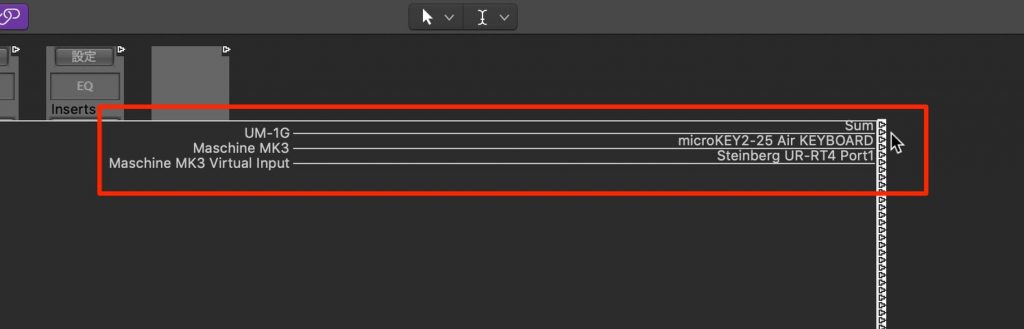
All the MIDI devices connected to the Mac that can be played are displayed like this.
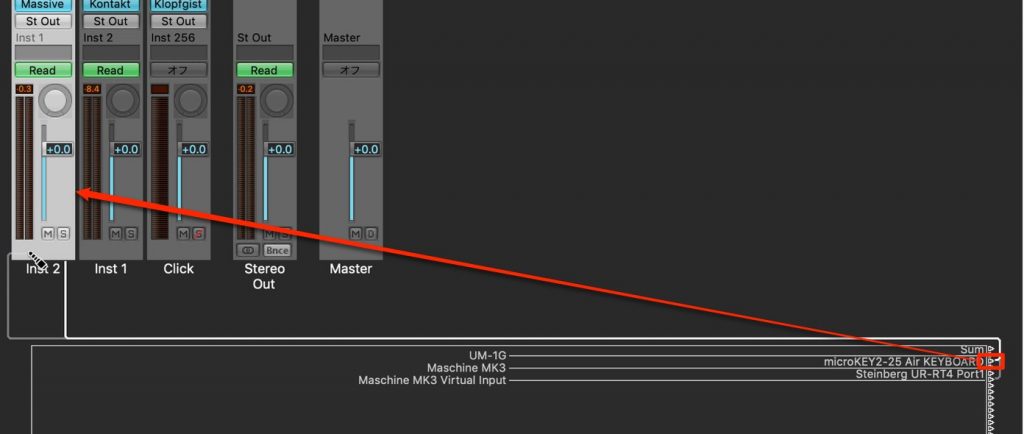
Drag the cable icon of each MIDI device to the target instrument to connect them.
That completes the setup.
You can now play the connected instrument from the specified MIDI device.
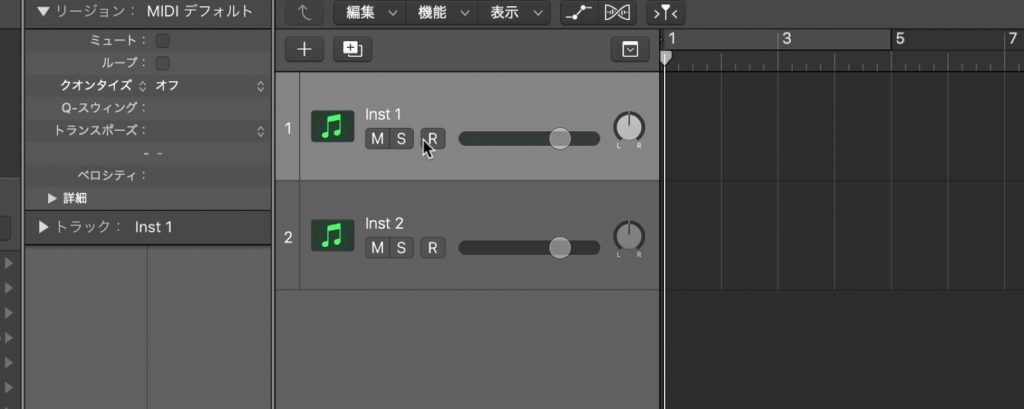
After this setup, sound is output even if the track's "R" is not lit.
Notes
With this setup you can play simultaneously, but you cannot record.
If you want to both play simultaneously and record, you also need to select "Sequencer Input" from "New" in the Environment and connect it to the "Physical Input".
This makes the setup a bit more complicated, so it is omitted here.
Using a specific MIDI device as a guide
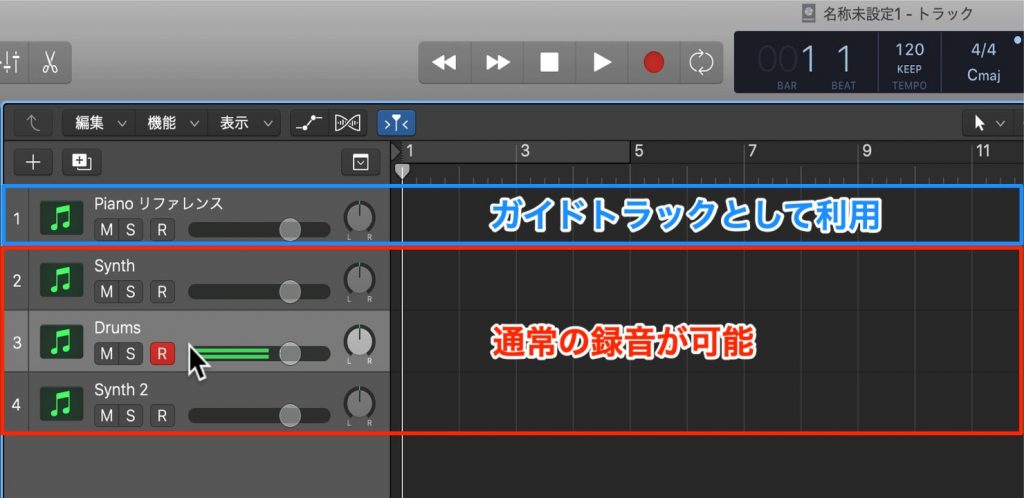
As an application of this setup, you can, for example, use the playing of a specific MIDI device as a guide during production.
- MIDI keyboard 1 – used as a guide (cannot be recorded)
- MIDI keyboard 2 – for normal recording
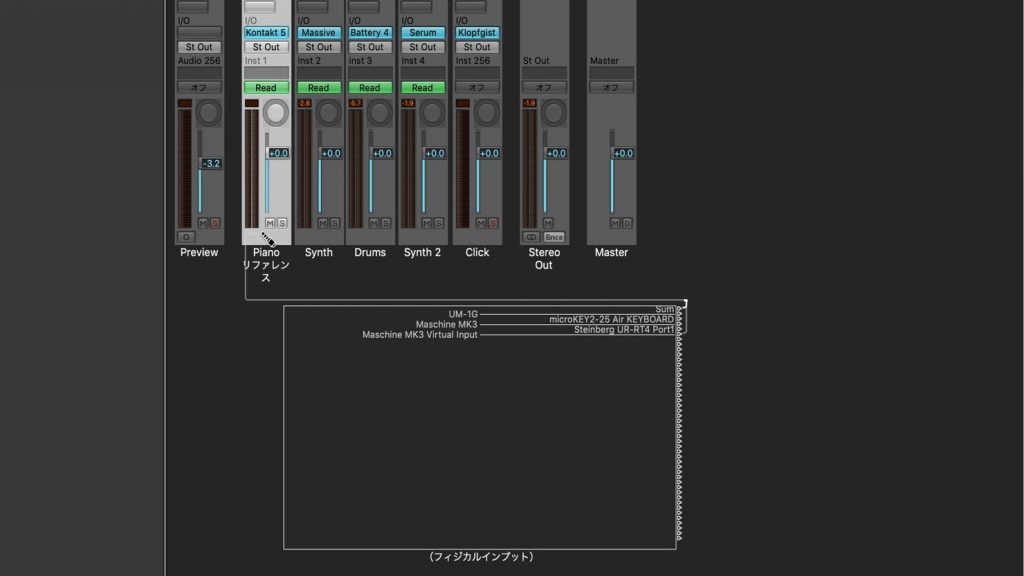
The setup is very easy: in the Environment, simply connect only the "MIDI device you want to use as a guide" to the "track".
The advantage is that sound plays immediately even when the track is not selected or "R" is not lit.
There should be many ways to use this, so please try it in your production.

A Logic setup that shines in live performance! Assigning different MIDI devices | Logic Tips
You can play your MIDI keyboard even when the track is not selected or "R" is not lit! Try it in your production.
🎥YouTube: https://t.co/8pbzdbQaRS
📝How-to article: https://t.co/7DOLV6CLLP pic.twitter.com/EDF1twPo7l
— SLEEP FREAKS (@SLEEPFREAKS_DTM) May 4, 2019
Frequently Asked Questions
Q1. How do I open the MIDI Environment in Logic Pro X?
Select "Open MIDI Environment" from "Window" in the top menu. Then select "New" → "Physical Input" in the window that appears, and the connected MIDI devices are listed.
Q2. If I assign multiple MIDI keyboards, can I record them at the same time?
This setup only allows simultaneous playing, not simultaneous recording. If you need both simultaneous playing and recording, you need to add a "Sequencer Input" in the Environment and connect it to the "Physical Input".
Q3. What are the advantages of using a MIDI keyboard as a guide instrument?
Sound is output immediately even when no track is selected or the record button ("R") is not lit. This improves efficiency during production and lets you play reference sounds quickly.
NEW ARTICLES
Latest English Articles











