
To manage MIDI notes from multiple tracks efficiently in Logic Pro, it is important to set colors for your regions and link the note colors in the Piano Roll to the region colors. This lets you grasp pitch and rhythm visually all at once, dramatically improving the efficiency of MIDI programming. Displaying notes by color lets you quickly identify each element even in complex multitrack editing, and mixing and arranging also go more smoothly, so this is a practical efficiency technique for everyone from DTM beginners to professionals.
Color your MIDI regions to make them easy to read visually
This time we explain a handy MIDI programming technique.
While working, there are many times when you want to check the "pitch/rhythm" of multiple tracks at the same time.
Doing this dramatically improves your workflow.
Video Tutorial
Displaying notes by color
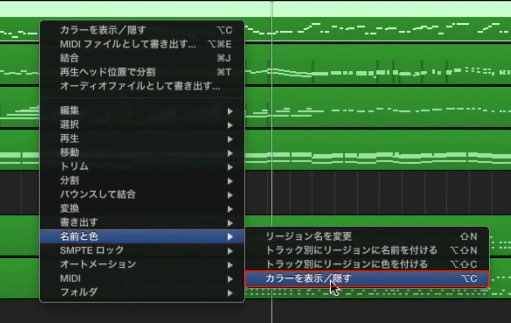
Right-click a region and
select "Name and Color" → "Show/Hide Colors".
You can also display them with "Option + C".
<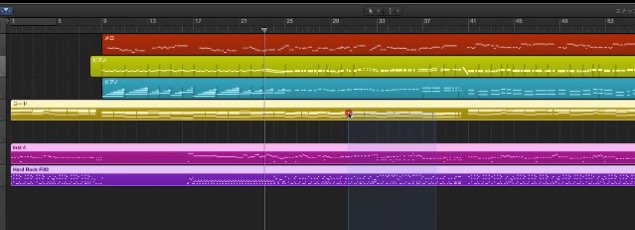
Set colors for the regions.
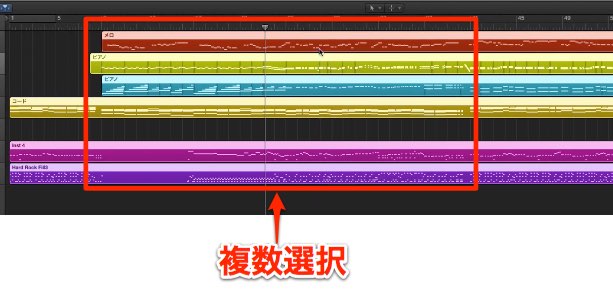
Select the multiple regions you want to display at the same time and "double-click".
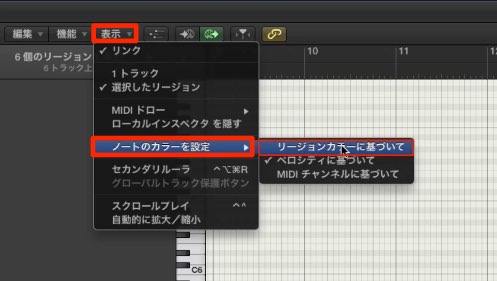
The "Piano Roll" opens, so from the menu
select "View" → "Note Color" → "By Region Color".
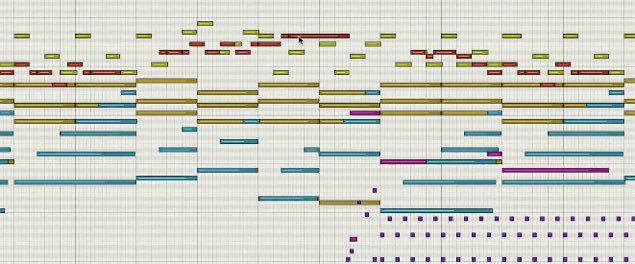
The MIDI note colors now change to match the region colors like this.
This makes editing in the Piano Roll dramatically easier.

Frequently Asked Questions
Q1. How do I change MIDI note colors automatically in Logic Pro?
From the Piano Roll menu, select "View" → "Note Color" → "By Region Color", and the MIDI notes will automatically follow the region color settings.
Q2. Can I edit multiple regions in the Piano Roll at the same time?
Yes. Select the multiple regions you want to display at the same time and double-click, and the MIDI notes from those regions are shown together in the Piano Roll.
Q3. Is there a keyboard shortcut for quickly toggling region colors?
Yes. "Option + C" instantly shows or hides region colors.
NEW ARTICLES
Latest English Articles











