
Introduced in Cubase 12, MIDI Remote greatly simplifies connecting MIDI controllers to your DAW. We tested five controllers with factory scripts: the Launchkey 49 MK3, AKAI MPK mini mkIII, Arturia KeyLab Essential, MiniLab mkII, and KORG nanoKONTROL2. This guide explores how each behaves when connected, its default mappings, mode switching, Quick Controls, and mixer operation. If setting up hardware controllers has put you off, MIDI Remote can reduce the configuration work and help you build a practical production setup.
Exploring MIDI Remote, Introduced in Cubase 12
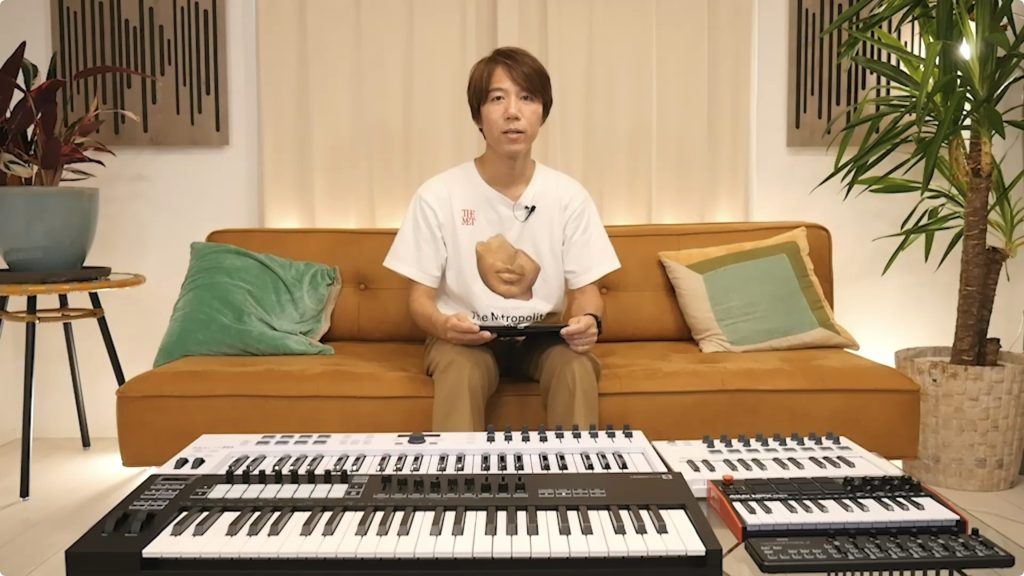
Cubase 12 introduced the convenient MIDI Remote feature.
We covered it in our new-features overview, but this time we borrowed several controllers with factory script presets to examine their connection behavior and hands-on operation in more detail.
Connecting and integrating MIDI controllers is now easier, making this worth a look even if you've been hesitant to add hardware to your setup!
Related Article
Cubase 12 MIDI Remote: Video
- 1Launchkey 49 MK3
- 2AKAI MPK mini mkIII
- 3Arturia KeyLab Essential Series
- 4Arturia MiniLab mkII
- 5KORG nanoKONTROL2
- 6Adding Controllers Without a Factory Preset
Selected Questions and Answers from YouTube

This was very helpful, thank you. I bought a nanoKONTROL2, but its MIDI control surface doesn't appear in Cubase 12 or 13—the KORG folder under Public in midiremote_factory_scripts is empty. How can I get it?

Have you tried the settings on page 10 of this manual? https://cdn.korg.com/jp/support/download/files/b46f57955085fc3b7811194a225ecd2e.pdf?response-content-disposition=inline%3Bfilename%3DnanoKONTROL2_PG_J1.pdf&response-content-type=application%2Fpdf%3B
I'm a beginner using Cubase. Would you recommend a Novation keyboard above the others?
It depends on which features matter most to you, but it's a very capable keyboard and offers good value, so we can recommend it!
Launchkey 49 MK3
First up is Novation's Launchkey 49 MK3.
All the models covered here with factory scripts are recognized when connected by USB, and their graphical control surfaces appear.

Selecting the controller applies its default preset.
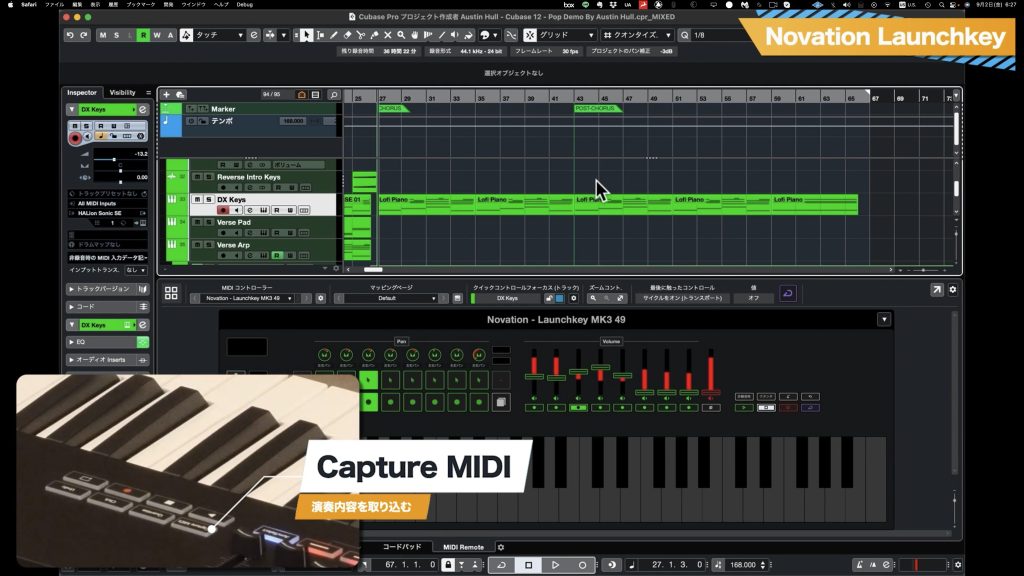
On the Launchkey MK3, the initial mapping gives you mixer control.
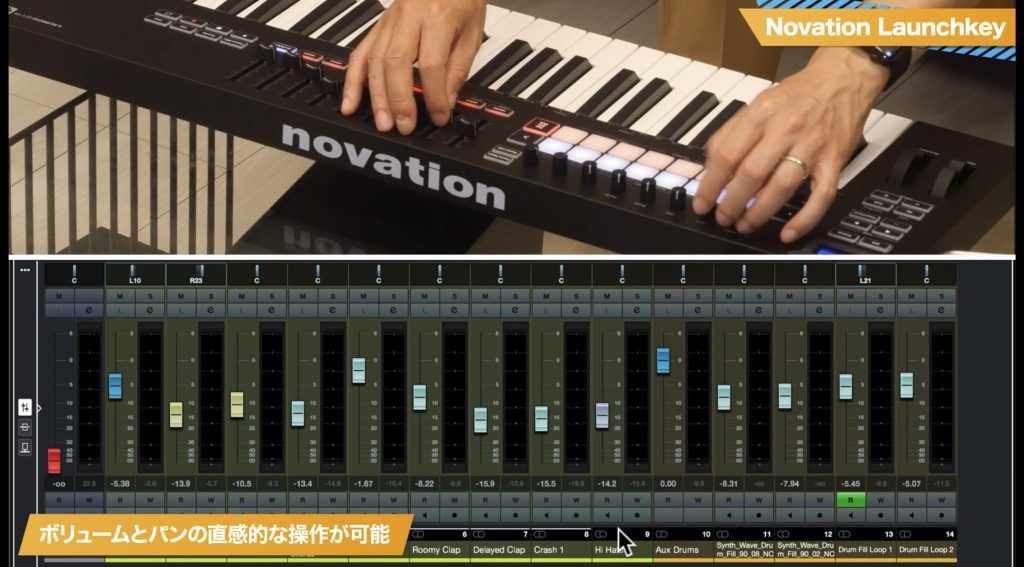
The knobs control pan, and the sliders control the volume faders.
The left and right buttons move through tracks in banks of eight, while the pads select and arm tracks for recording.
The pads and buttons beneath the faders follow the track colors, helping you identify tracks.
Activate the subpage with the hardware's Stop/Solo/Mute button to control mute and solo.

On the other controllers, you select a mapping to change modes. On the Launchkey MK3, you can switch using the hardware buttons.
Hold Shift and press the Device button associated with the knobs or faders to switch those controls to Quick Control mode.
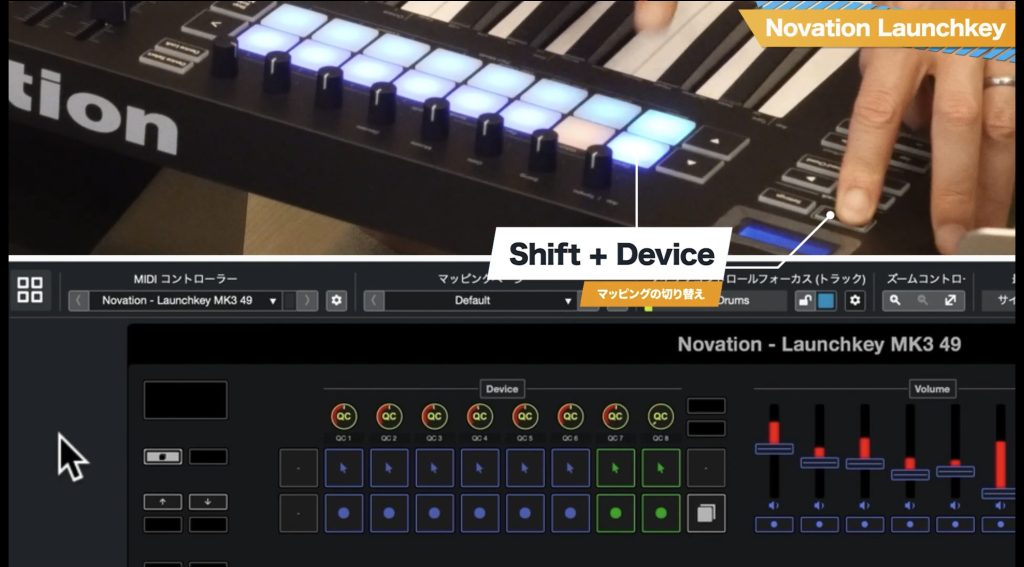
In Quick Control mode, you can use the predefined mappings for the instrument or effect you want to control.
The active window determines the target, so you don't need to change the mapping manually for each plug-in.

Press Shift + Send on the hardware to switch to Send mode.
In Send mode, you can adjust send slots 1 and 2 across tracks.

The transport controls include playback, stop, and loop on/off. There's also a Capture MIDI button that recalls a performance you played without recording.
Cubase can retain MIDI input even when you're not recording, and this control integrates with that feature.
AKAI MPK mini mkIII
Next, let's look at AKAI's MPK mini mkIII.
This controller is also recognized when connected, and its default mapping appears.
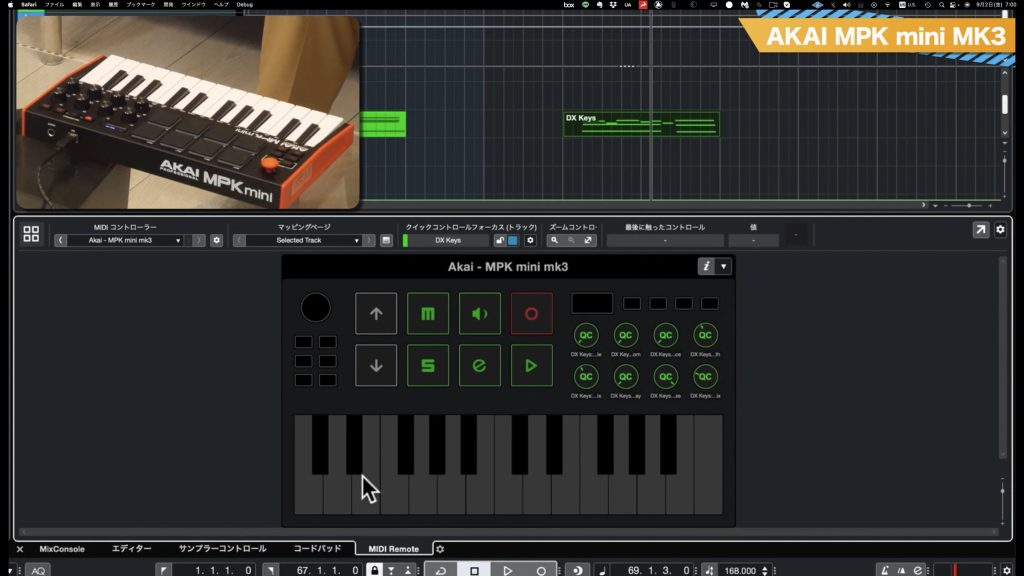
The MPK mini mkIII's default mapping assigns transport commands to the pads and Quick Controls to the knobs, but there's one point to watch.
Immediately after startup, the pads aren't ready to operate the MIDI Remote mapping.
Press the CC button in the PAD CONTROLS section at the upper right of the hardware to enable them.
This preset provides only one mapping. To assign other functions, use the customization options discussed later.
Arturia KeyLab Essential Series
Next is Arturia's KeyLab Essential series.
It is recognized and added when connected, with Quick Controls mapped to the knobs by default.
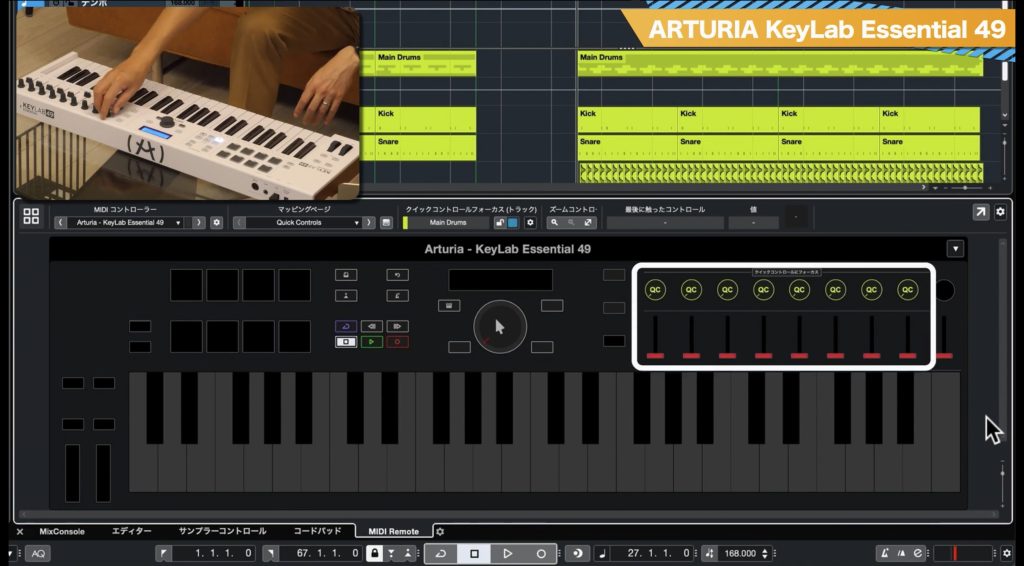
One distinctive feature of the KeyLab Essential script is the Instrument button above and to the left of the main dial.
It lets you immediately bring up the instrument on the currently selected track from the hardware, which is very convenient.
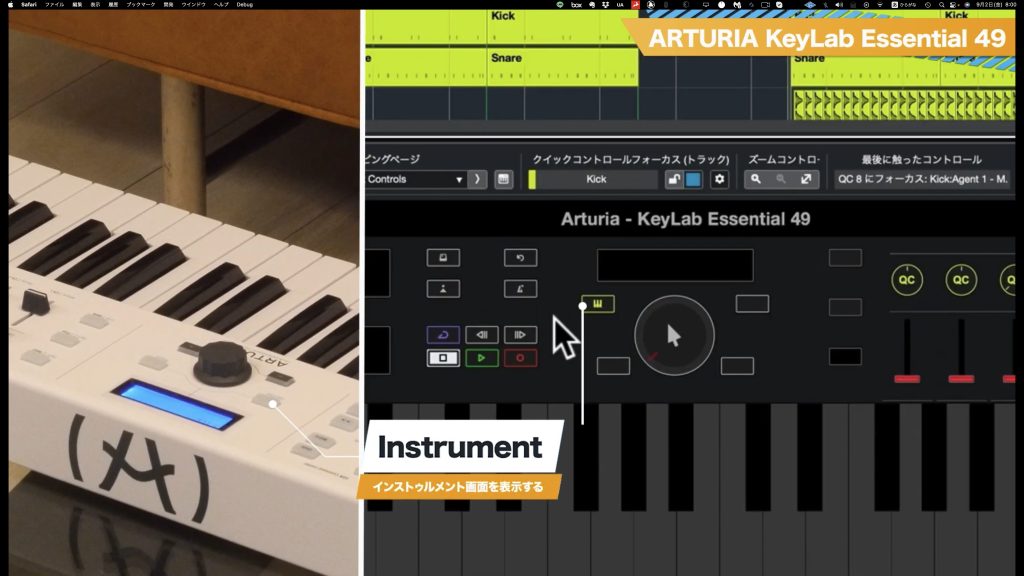
Once the instrument is displayed, use the Preset button above and to the right of the dial to access its preset window.
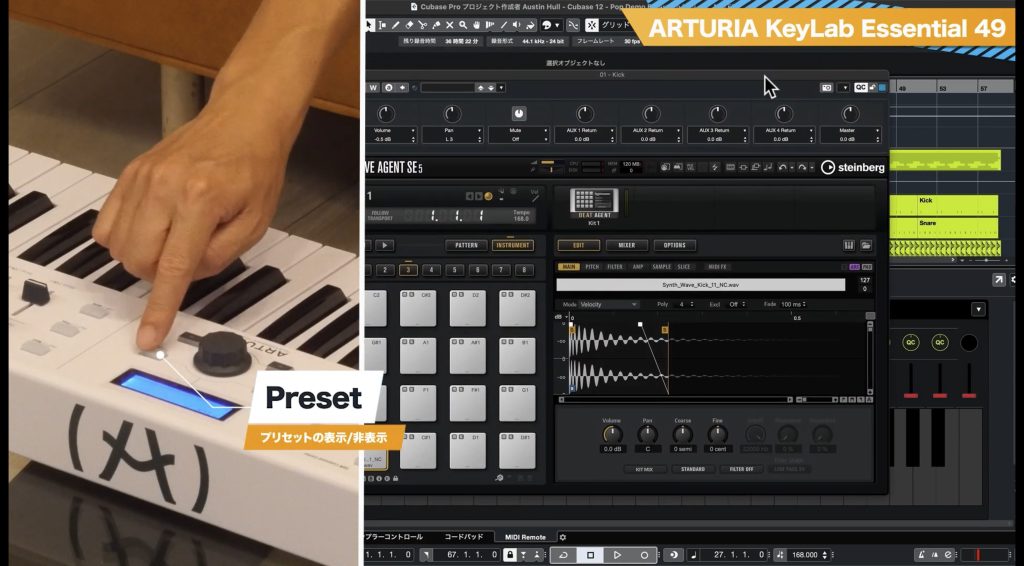
KeyLab also provides a second mapping page called Mixer.
Switch to it here.

Mixer uses a conventional controller layout: knobs adjust pan and sliders adjust volume faders.

Note: The Cubase 12.0.40 update, released on August 3, 2022, added Control Room functions.
Arturia MiniLab mkII
Next is another Arturia controller, the MiniLab mkII.
When connected, it is recognized and opens its default Quick Controls mapping page.
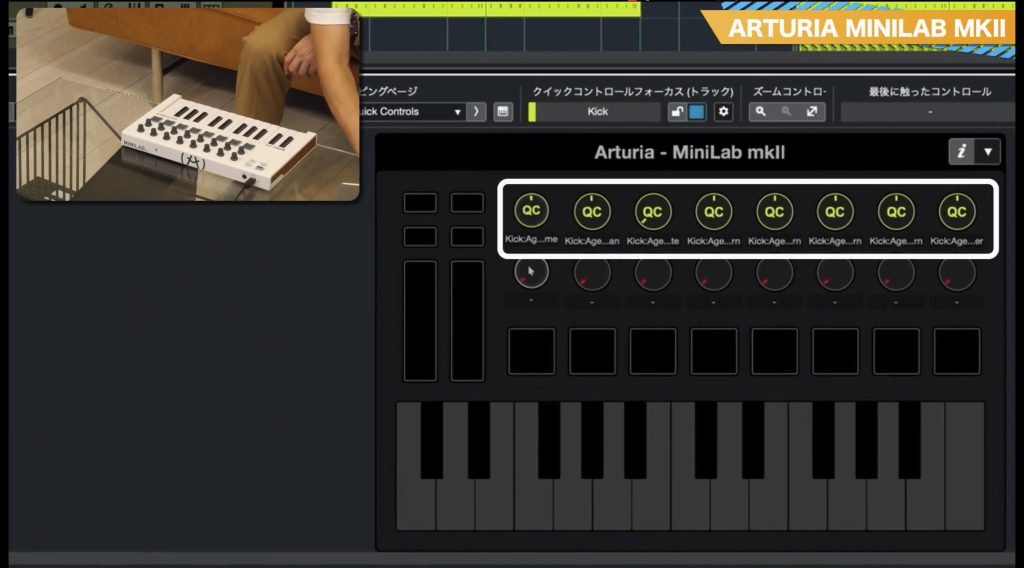
A particularly useful MiniLab feature is the leftmost knob in the bottom row, which controls the parameter under the mouse pointer.
This is handy when you want to adjust a parameter briefly without adding it to your default Quick Controls.
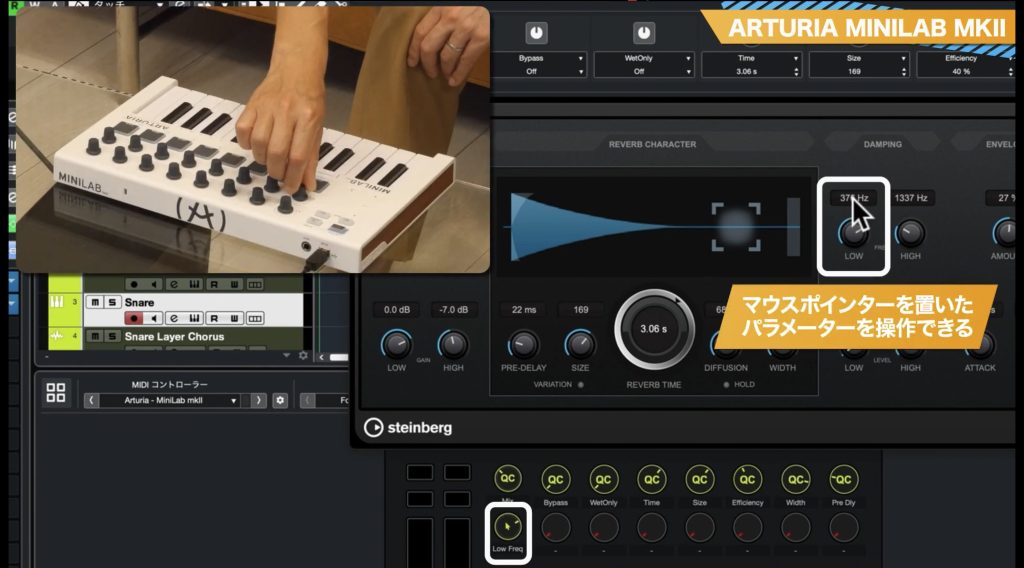
MiniLab offers two additional mapping pages.
One is Mixer. The upper row of knobs controls pan, and the lower row controls volume faders.
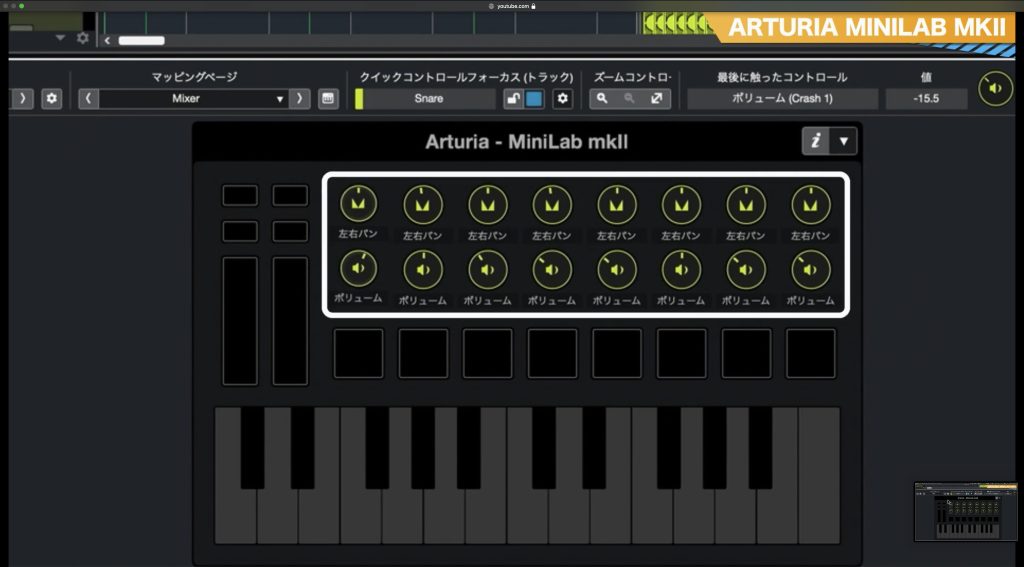
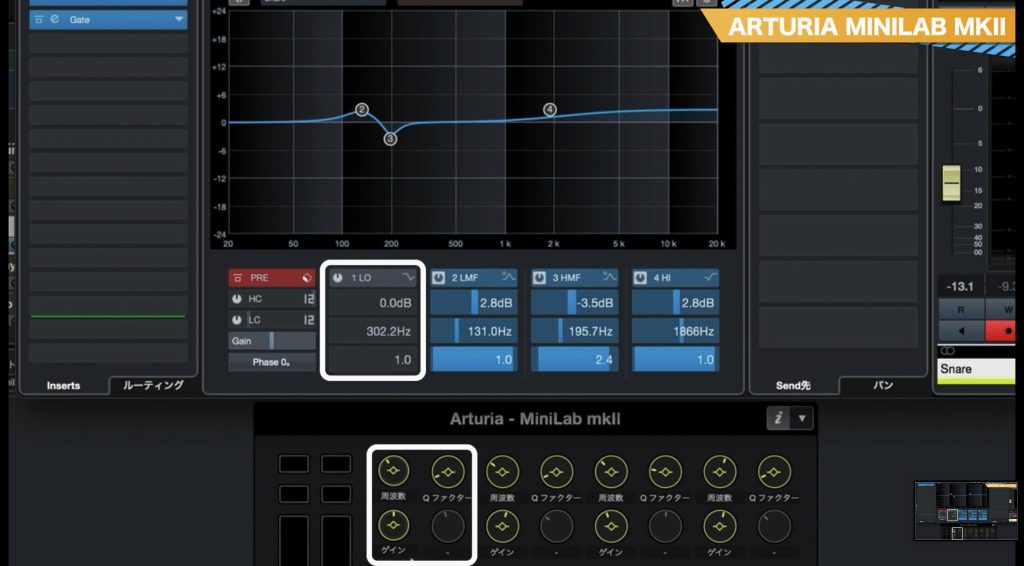
The other is EQ of Selected Track.
Each set of three knobs controls one EQ band.
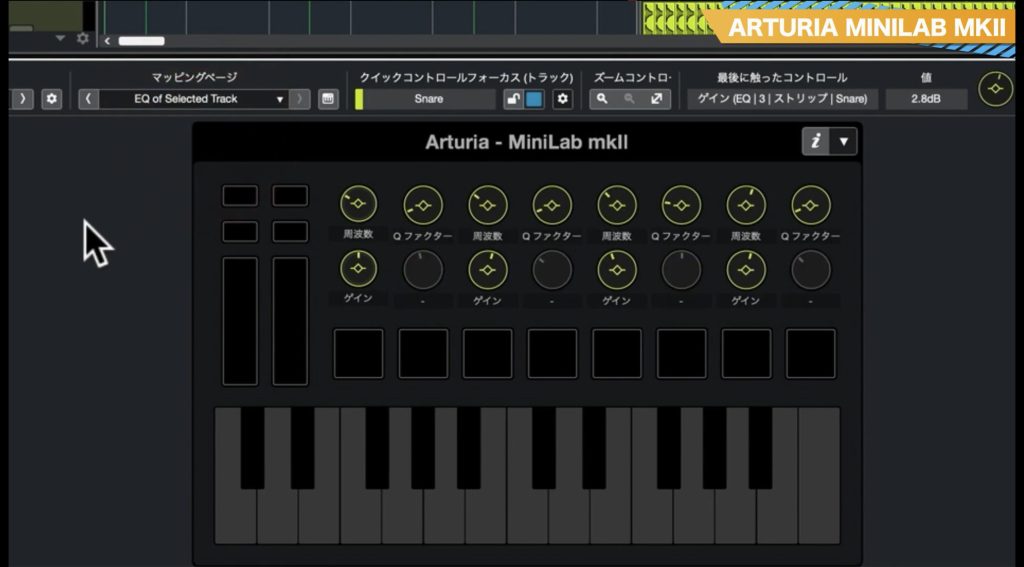
The mapping operates Cubase's built-in channel EQ, with knobs assigned to frequency, Q, and gain.
KORG nanoKONTROL2
Next is KORG's compact, portable nanoKONTROL2.
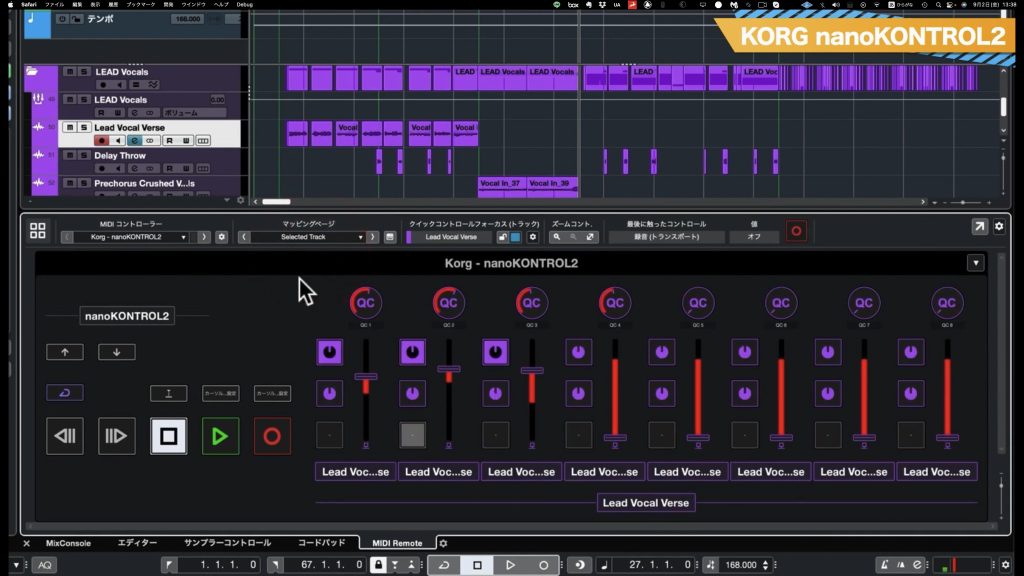
When connected, its default mapping is Focus Quick Controls.
The knobs across the top operate the Quick Controls for the open window.
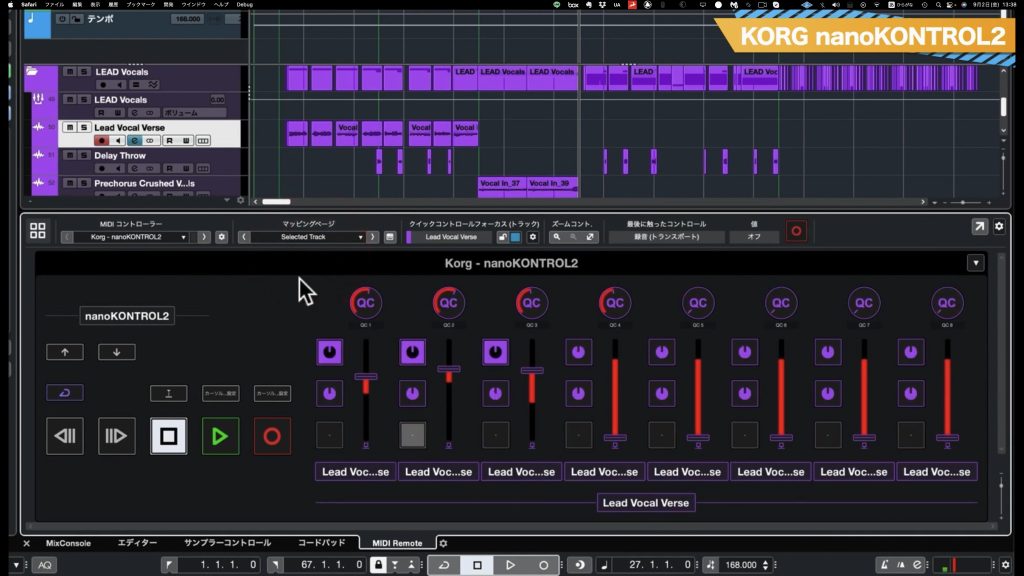
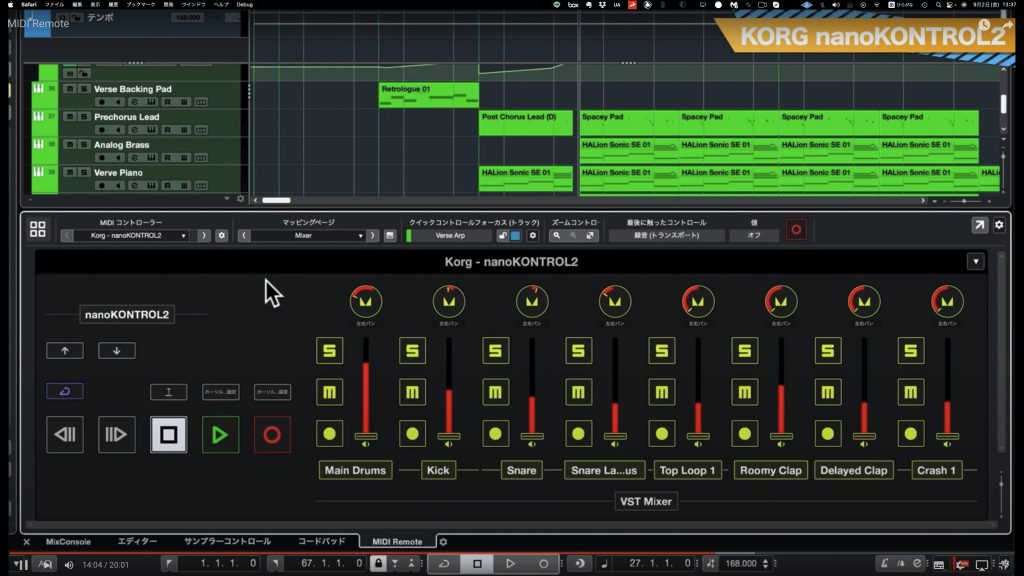
nanoKONTROL2 provides three additional mapping pages.
Mixer is particularly well suited to its physical layout. Dedicated solo, mute, and track-arm buttons make it feel very easy to use.
In Selected Track, the upper knobs operate the selected track's Quick Controls, while the faders adjust its sends.
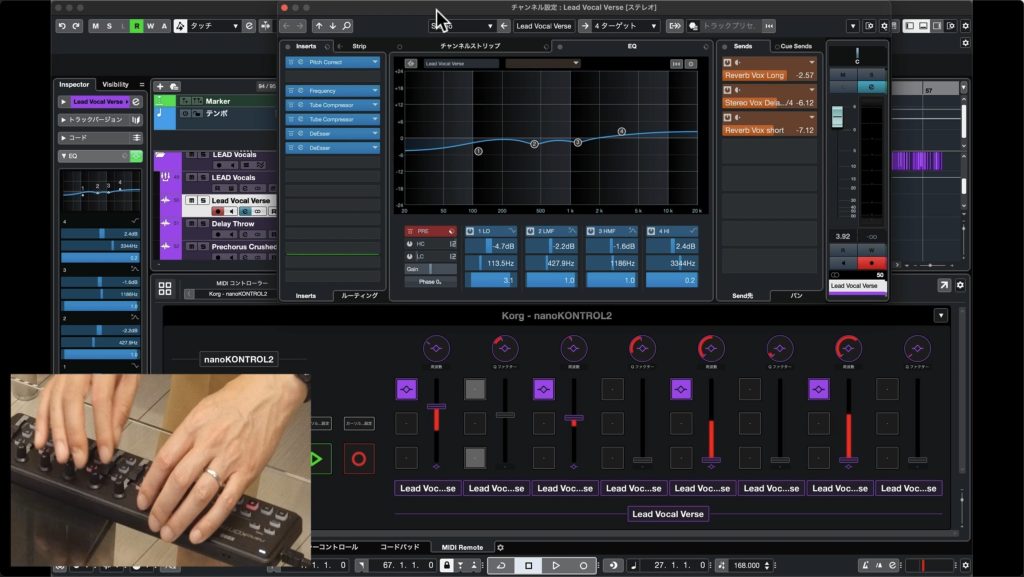
EQ of Selected Track controls Cubase's channel EQ, just as on the MiniLab described above.
Each band uses a group consisting of two knobs and a fader.
Adding Controllers Without a Factory Preset
MIDI Remote isn't limited to controllers with factory presets: you can define a graphical control surface and register your own controller.
The video above demonstrates how to register a KOMPLETE KONTROL M32.
See the following article for detailed setup instructions.
On KOMPLETE KONTROL controllers, switch to MIDI mode to use the functions configured in MIDI Remote.
On the hardware shown, press SHIFT and MIDI at the same time.
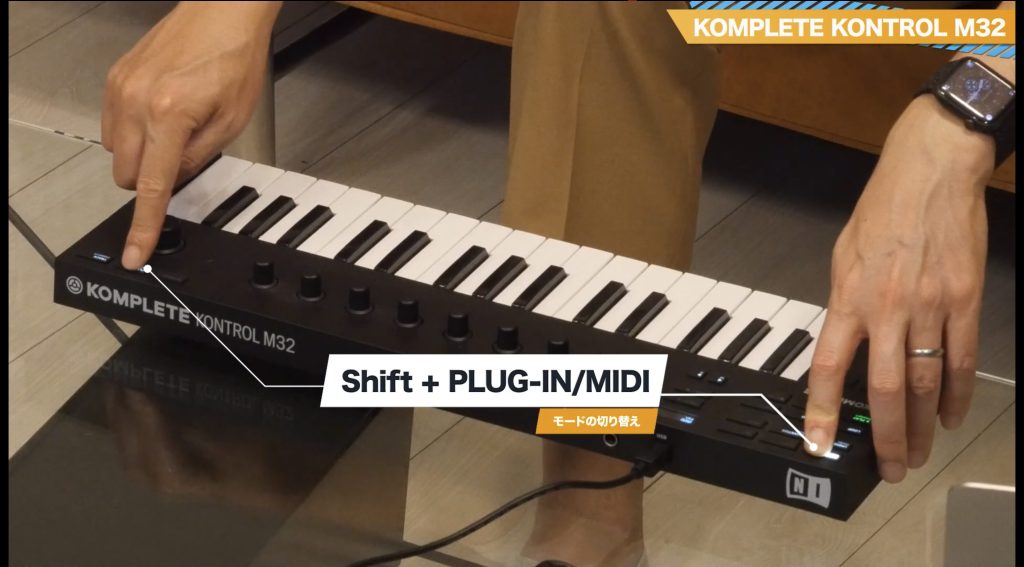
The procedure varies between KOMPLETE KONTROL models, so please consult the manufacturer's support page.
Even after switching to MIDI mode, selecting a different track can switch it off again in the setup shown here.
However, you can also use the controller when it isn't in MIDI mode—that is, in Native mode.
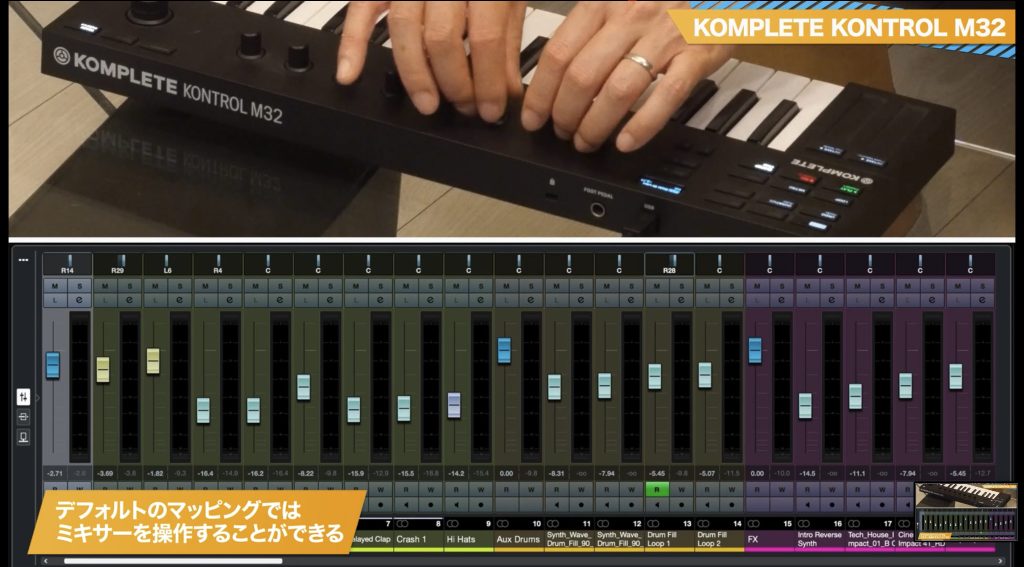
In Native mode, each knob controls the volume of a track in the currently selected mixer bank. Hold Shift to switch to pan control.
We recommend switching between this mapping and MIDI mode to make use of both.
That should give you an idea of how useful Cubase 12's MIDI Remote can be.
We hope this helps whether you're planning to buy a MIDI keyboard or set up one you already own.
Exploring MIDI Remote, Introduced in Cubase 12!
Connecting and integrating MIDI controllers is now easier. If you've been hesitant to add hardware, take a look!
Video: https://t.co/uX4azg4z6N
Article: https://t.co/d9NuUHuoZv #DTM #Cubase pic.twitter.com/4ZvKdM44Qw
— SLEEP FREAKS (@SLEEPFREAKS_DTM) September 4, 2022
Frequently Asked Questions
Q1. Which controllers does MIDI Remote in Cubase 12 support?
Factory scripts are supplied for controllers from several major manufacturers, including the Launchkey MK3, AKAI MPK mini mkIII, Arturia KeyLab Essential, MiniLab mkII, and KORG nanoKONTROL2. The models tested here are detected when connected by USB, allowing you to start using their mappings quickly.
Q2. What can I do with MIDI Remote's default mappings?
The mappings vary by model, but typically include mixer volume and pan, track selection, Quick Controls, effect sends, and transport commands for DAW operation.
Q3. Can I use a controller that doesn't have a factory preset?
Yes. You can customize a control surface and assign its controls yourself. This article also introduces adding a controller without a factory preset.
Q4. What makes the Launchkey MK3 distinctive?
You can switch modes using its hardware buttons. Shift + Device selects Quick Control mode, while Shift + Send selects Send mode. Capture MIDI also lets you recall a performance played while recording was stopped.
Q5. What is particularly useful about the MiniLab mkII?
Its bottom-left knob can control the parameter under the mouse pointer. This is useful for temporarily adjusting a parameter that isn't assigned to Quick Controls.
NEW ARTICLES
Latest English Articles











