Cubase grouping features let you manage multiple tracks together for a more efficient mix. This article explains version-specific approaches, including VCA faders in Cubase 8, Q-Link in Cubase 7, and channel linking in Cubase 6. Linking controls such as volume, pan, mute, and solo can reduce repetitive adjustments when working with kick and bass, backing vocals, or numerous melodic tracks, helping your workflow and mix.
Cubase grouping: a convenient way to change multiple tracks together

Group tracks together to make your workflow more comfortable.
Controls such as volume, pan, editing, solo, and mute can be linked within the group.
This is useful for kick and bass, multiple backing vocal tracks, and melodic parts that tend to accumulate.
VCA fader tutorial
Selected questions and answers from YouTube

I recently learned about VCA faders, but how are they different from group channels? Their functions and appearance seem almost the same. Are they mainly useful for linking tracks inside a group channel with tracks outside it?

For example, if each track has reverb applied through a send and return, the default post-fader mode changes the send level with the track volume. If those tracks feed a group channel, changing the group channel's volume does not change the amounts already sent from the individual tracks. With a VCA fader, the individual track volumes move together, so the reverb send levels also adjust with them.

Creating a VCA fader
- Cubase 8
- Cubase 7
- Cubase 6
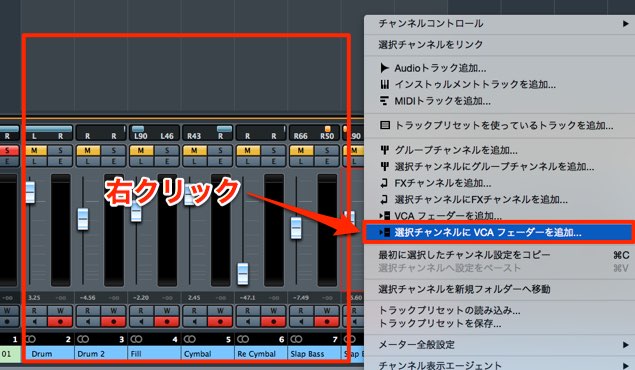
Open Devices → MixConsole from the top menu
and select all the tracks you want to link.
Right-click and choose ‘Add VCA Fader to Selected Channels’.
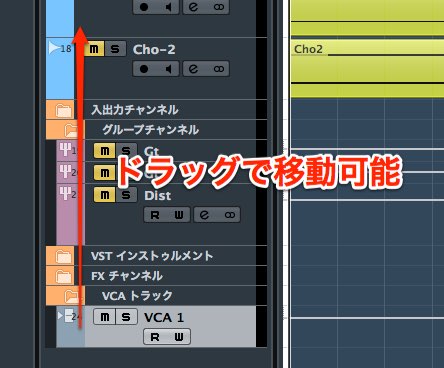
A VCA fader is created.
You can drag it to a new position just like a regular track.
Move it somewhere convenient to control.
Operating a Cubase 8 VCA fader
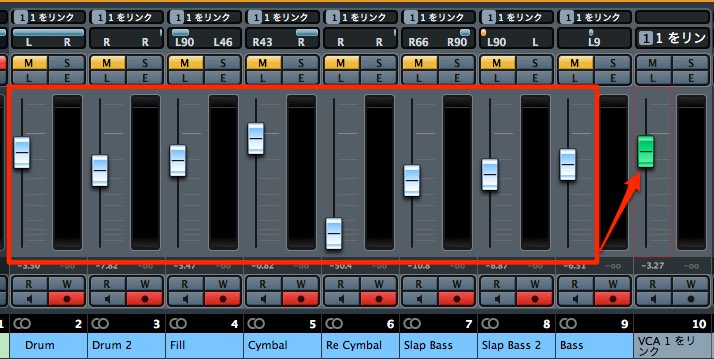
You can adjust the volume of all tracks assigned to the VCA fader at once.
You can create multiple VCA faders.
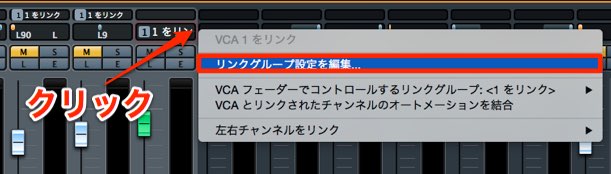
By default, most controls are linked,
but you can unlink individual items.
Click the downward triangle to the right of the link name.
Choose ‘Edit Link Group Settings’.
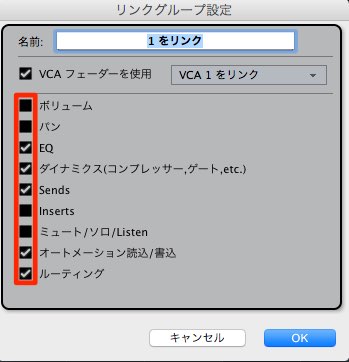
Clear the checkbox for a control to stop editing that control across the group.
You can then adjust it individually.
Changing or removing a Cubase 8 VCA assignment
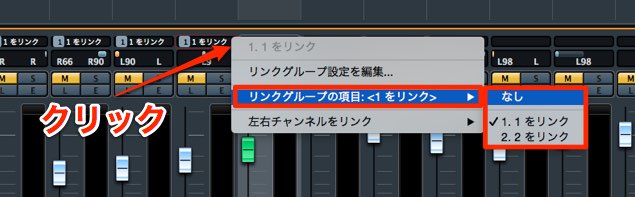
You can change or remove the VCA fader assigned to a track.
Click the downward triangle to the right of the link name on the track you want to change.
Choose ‘None’ to remove the assignment,
or select another VCA fader's name to assign the track to it.
Cubase 7 MixConsole: Q-Link tutorial
Setup
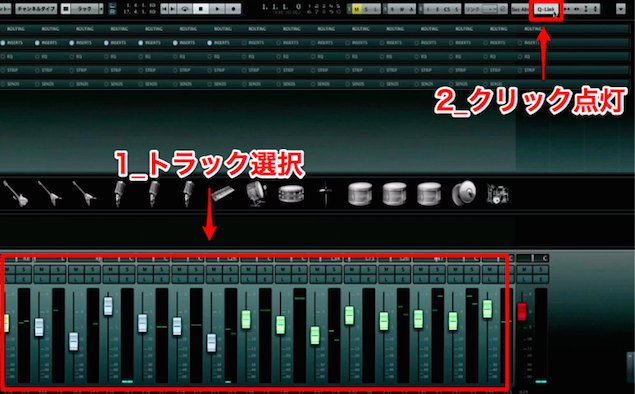
Select the desired tracks and activate Q-Link
to change volume, pan, mute/solo, and other controls together.
After making your adjustments, click Q-Link again to turn it off.
Fast DTM lesson 3: Mixer adjustment techniques
Setup
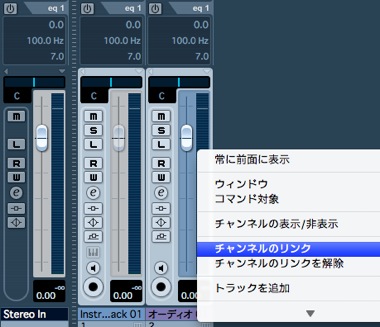
Select the tracks you want to link and right-click.
On a Mac, you can also Control-click.
Choose ‘Link Channels’.
To unlink them, choose ‘Unlink Channels’ below it.
- Cubase 8
- Cubase 7
- Cubase 6
Frequently asked questions
Q1. How do Cubase grouping features differ from folder tracks?
Grouping features can control parameters such as volume and pan across multiple tracks. Folder tracks visually organize and contain tracks; they are not used to link those parameters directly. Choose the feature that suits your purpose.
Q2. How can I adjust only some VCA link settings individually?
Click the downward triangle to the right of the link name and choose ‘Edit Link Group Settings’. Clear the checkbox for the control you want to adjust individually to unlink that operation.
Q3. Can I create multiple VCA faders in Cubase 8?
Yes. You can create multiple VCA faders and assign them to different groups for finer control.
Q4. How do I remove a track from a group?
Click the downward triangle to the right of the link name and choose ‘None’, or assign the track to another VCA fader.
NEW ARTICLES
Latest English Articles