
SOUNDRAW 2.0 is an AI music-generation platform that can combine different genres, such as hip-hop and orchestral music. It generates a track in seconds through a simple three-step process, with detailed editing available through block editing, Mixer Mode, and parameter controls. Japanese-language support has expanded its use among people in Japan. The Artist and Creator plans suit different purposes, from distributing and selling music to adding background music to videos, serving a wide range of music-production needs.
Create Your Own Sound in Just a Few Clicks: AI Music Creation Gets Even Better

SOUNDRAW is aplatform that uses AI to make it easy to create original music.
Version 2.0 features a more powerful AI engine and a more user-friendly interface.
Japanese-language supporthas also been added, a welcome update for users in Japan.
The feature that stands out most isthe ability to mix two genres,opening up new musical possibilities depending on the combination.
Here, we’ll introduce SOUNDRAW’s new features and show you how to use them.
We previously made two videos about SOUNDRAW.
For an overview and a walkthrough, see the videos below.
[Video] Creating a Track with AI Music Generation
Two instructors create a track live using Ado’s “Show” as the theme
We received a coupon code that gives you a discount on the product.
It’s included at the end of this article, so feel free to use it if you decide SOUNDRAW is right for you.
Now, let’s take a look at the new features.
Listen to Tracks Made by Mixing Genres
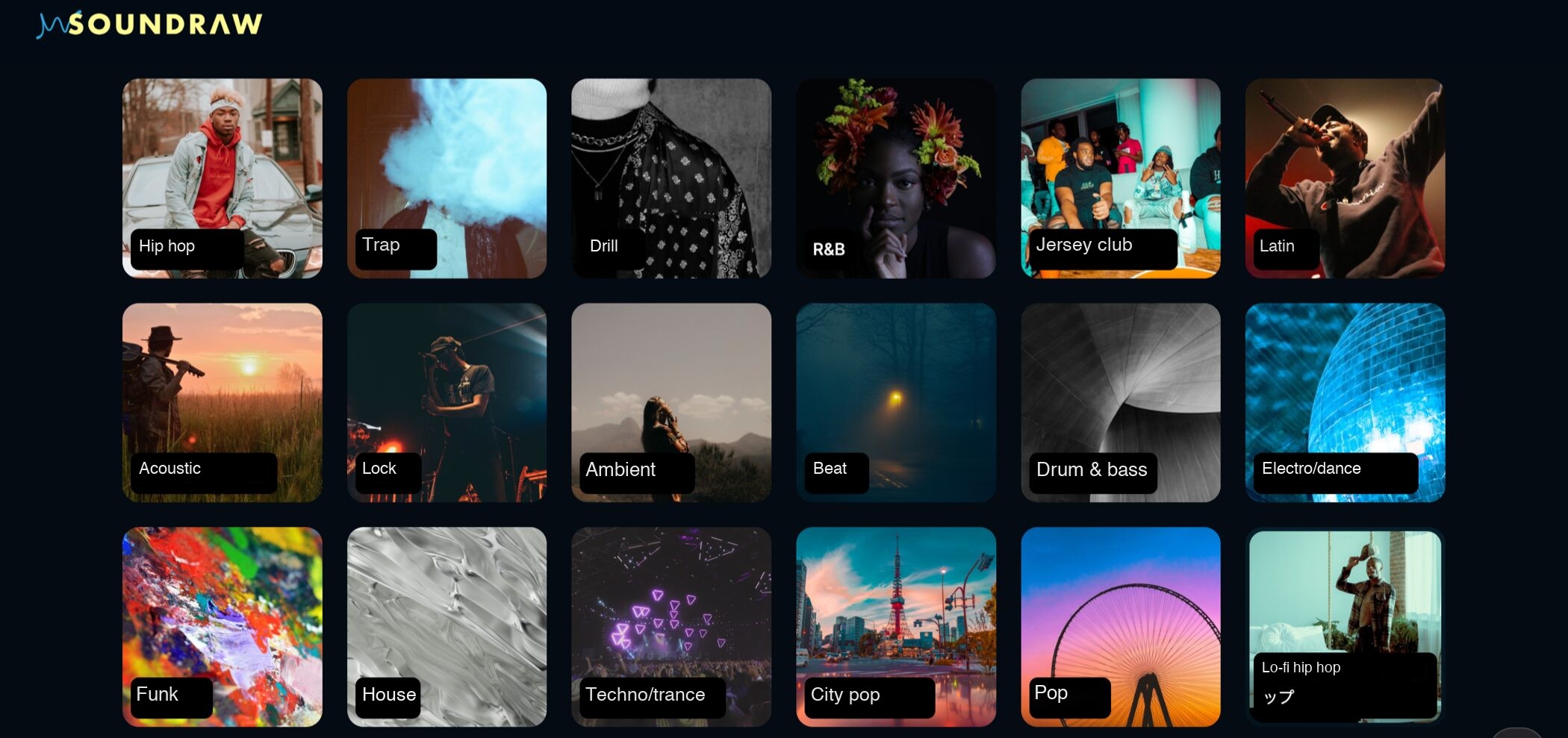
First, let’s listen to a few tracks generated by combining genres.
Hip-Hop × Orchestra
Hip-Hop × Orchestra

Drum & Bass × Drill
Drum & Bass × Drill

Pop × Electronica
Pop × Electronica

Trap × Rock
Trap × Rock

With version 2.0,AI can automatically generate tracks by combining different musical styles,making it easy to create genre-mixed music.
Compared with earlier versions,it generates a wider variety of tracks,which could open up new possibilities for music-making.
Generating Music
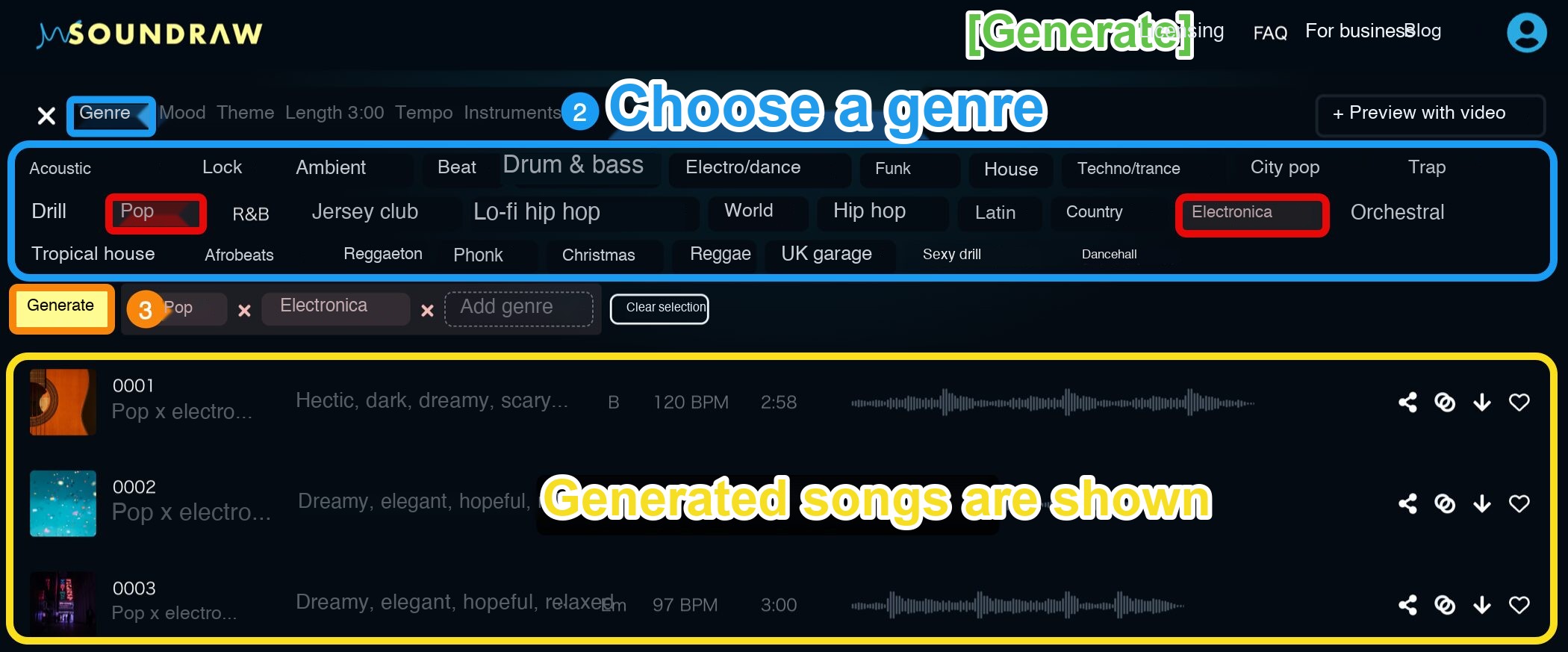
Generating music is simple:
1.Click Generate at the top of the page.
2.Choose the genres you want to combine.
3.Click Generate below the genre selection.
Your tracks will then appear in the list.
Generation is fast, so you can listen to the results right away.
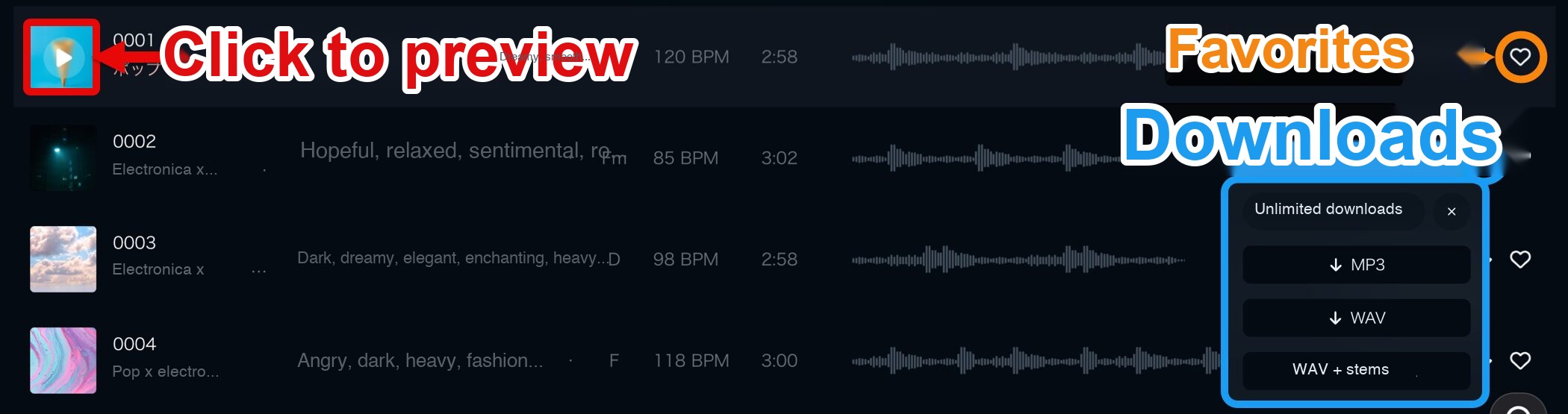
Click a generated track’s thumbnail to preview it.
When you find one that fits your idea,you can add it to your favorites or download it.
Downloads are available in MP3, WAV, and WAV + Stems formats.

You can also select more than two genres when generating a track.
In that case,the system generates tracks that combine pairs of the selected genresand displays them in the list.
This is handy when you want to audition several combinations efficiently.
Editing a Track
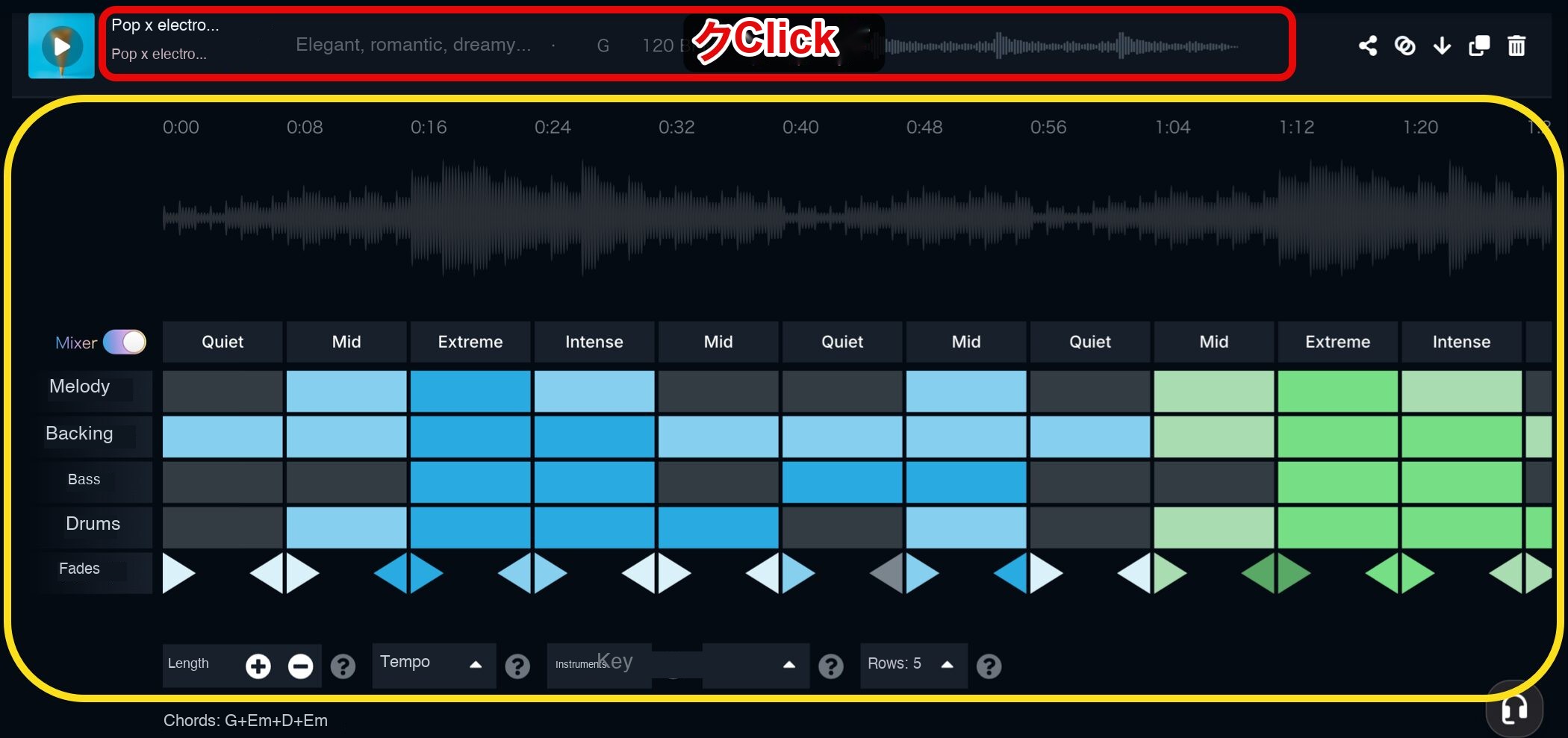
Click beside a track’s thumbnail to open the editing screen, where you canedit the track.

Tracks are divided into short sections called blocks. Click an audio waveform to play from that block.
Use the trash icon to delete a block or the plus icon to duplicate one.
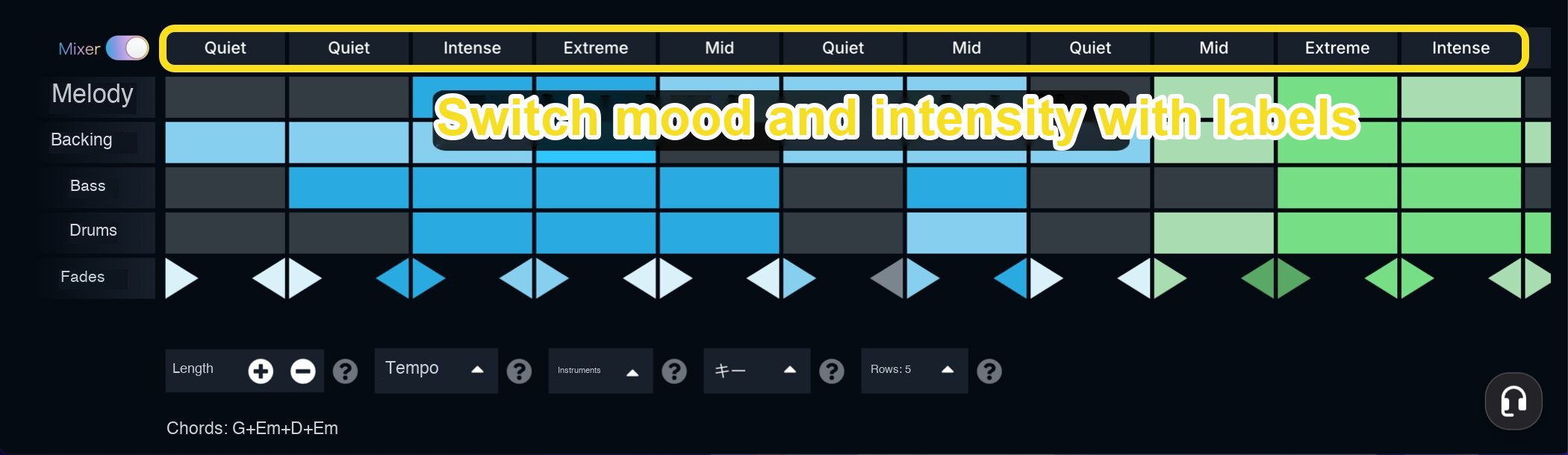
Each column has a label showing the energy level, mood, or intensity of the music.Switching the label makes it easy to add movement and variation to a track.
- Quiet: A calm, subdued section
- Mid: A section with moderate energy
- Intense: A powerful section
- Extreme: The highest-energy section
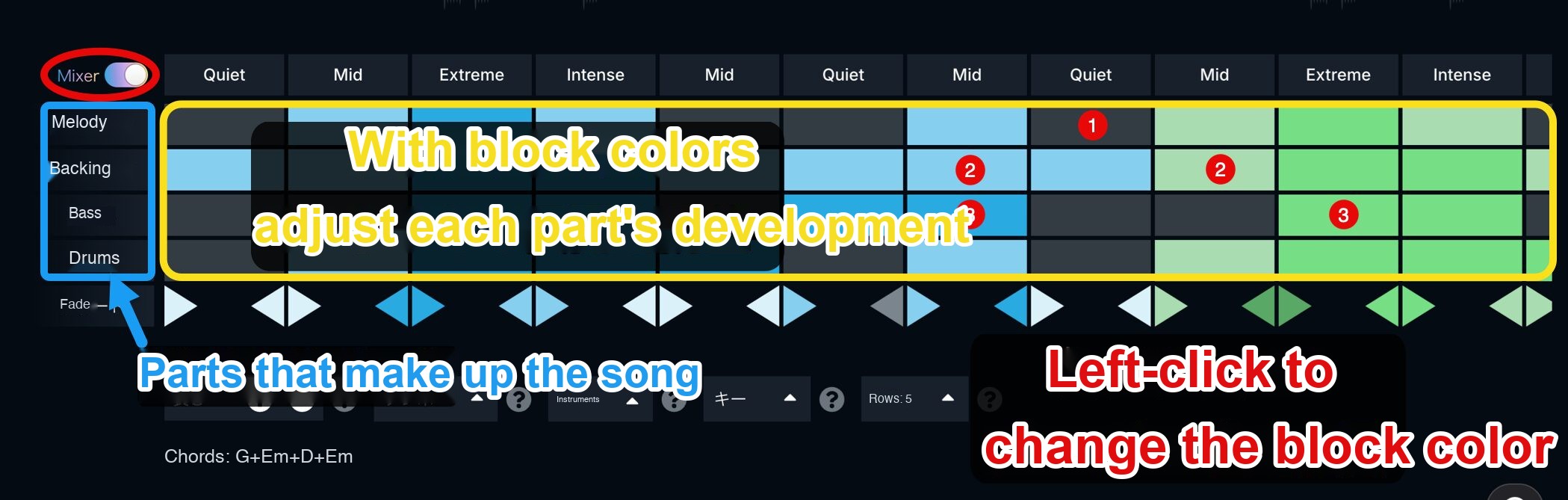
Mixer Mode displays each part that makes up the track. Left-click a block to change its color andshape how each part develops.
1. Gray: Muted
2. Light color: Playing
3. Dark color: Higher energy than the light-colored block
Blue and green blocks indicate different phrases.
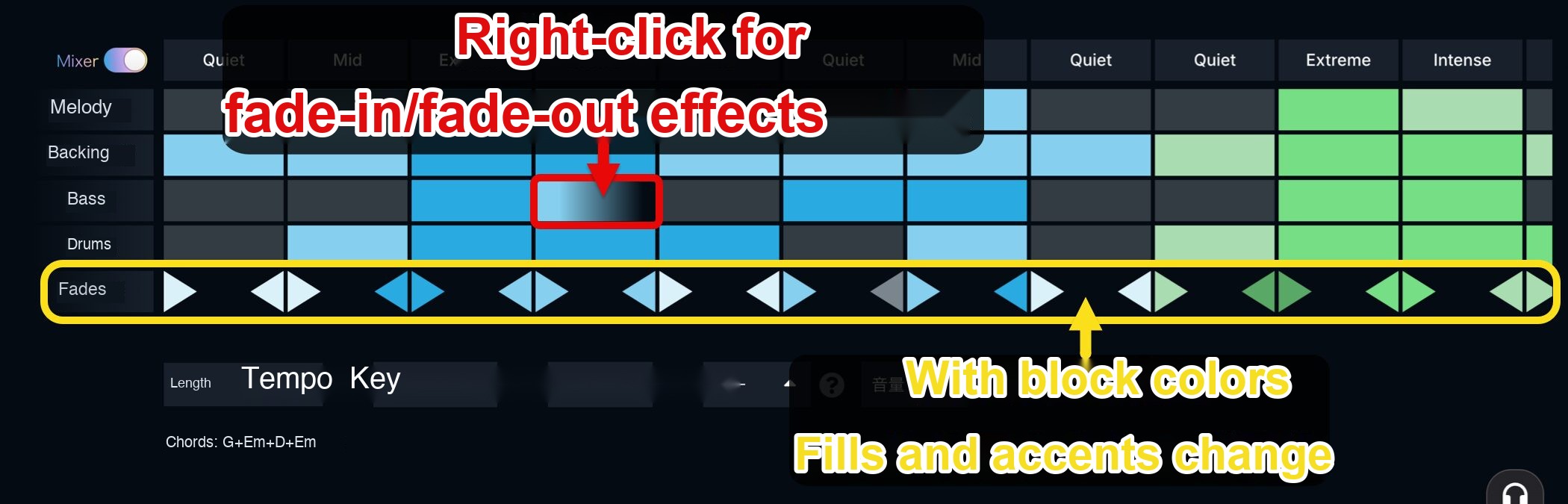
Right-click a block to turn it into a gradient, addingfade-in or fade-out effectssuch as a build-up or transition.
The tabs below each part are labeled Fill. Depending on the block color, theyhelp transitions between sections sound natural.
However, you can’t apply fade-ins or fade-outs to fills.
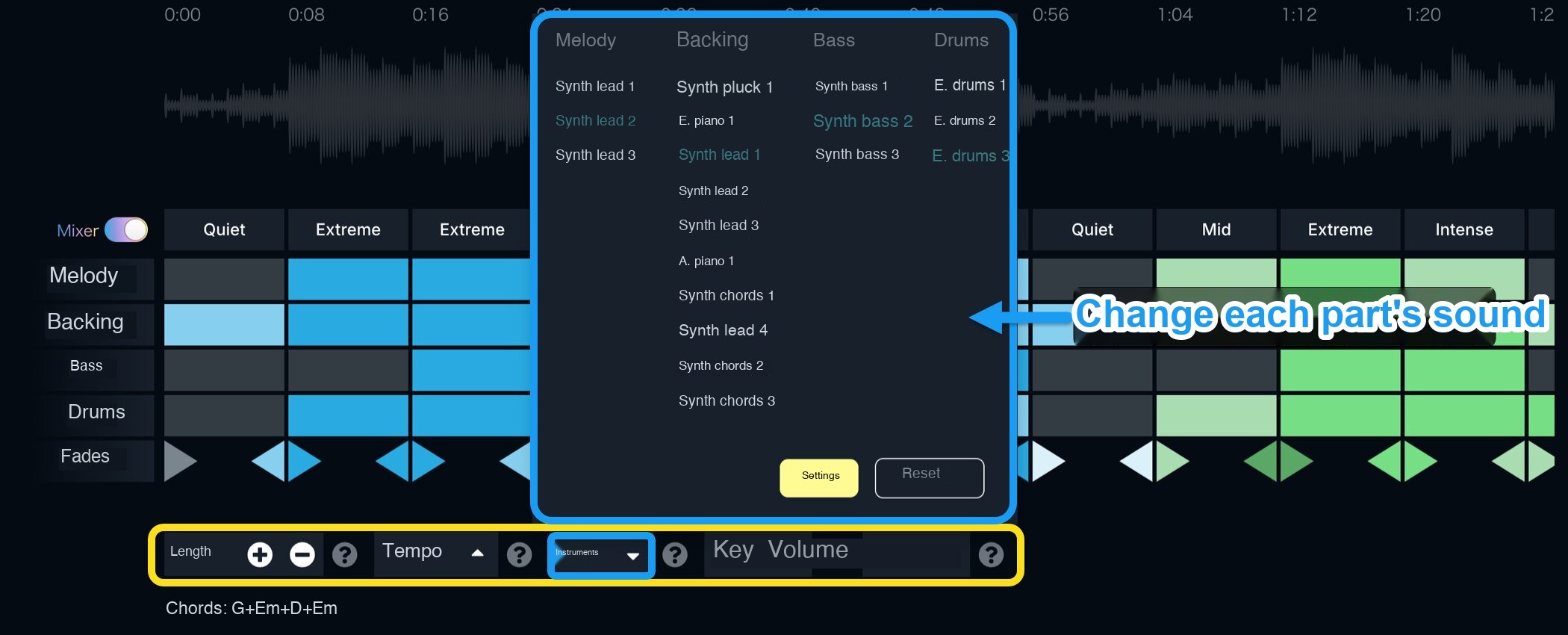
The controls at the bottom let you adjust the track’s overall length, tempo, key, and volume.
Under Instruments,you can change the sound of each part.

If you navigate to another page after editing,your changes will be reverted. To keep your edits, we recommend duplicating the track.
Click the Duplicate icon, rename the track, and select Add to Favorites tosave the edited track to your favorites.
Artist Plan and Creator Plan

SOUNDRAW offers two plans, the Artist Plan and the Creator Plan.There are two plans, andthe Artist Plan is available in three tiers: Starter, Pro, and Unlimited.
If you’re unsure which plan to choose,
- For distributing or selling your music → Artist Plan
- For background music in videos or games → Creator Plan
These are the recommended starting points.
The table below highlights key differences in how each plan can be used and its licensing terms.
| Artist Plan | Creator Plan | |
|---|---|---|
| Main Uses | Add vocals or instruments to tracks, then distribute or sell them | Use as background music in videos, games, and ads |
| Download Limit | •Starter: Up to 10 tracks per month •Pro: Up to 20 tracks per month •Unlimited: Unlimited |
Unlimited |
| Stems Included | Yes (available on Pro or higher with a monthly subscription) | No |
| Distribution on Spotify, Apple Music, and Similar Services | Allowed (vocals or instruments must be added) | Not allowed |
| CD and NFT Sales | Allowed | Not allowed |
| Background Music for YouTube, Social Media, and Vlogs | Not allowed (except for your own music videos) | Allowed |
| Restrictions | • Selling or distributing tracks without editing (arrangement is required) • Selling tracks through a music licensing service (whether or not they have been arranged) • Using tracks as background music in videos owned by someone else • Registering tracks with YouTube Content ID |
• Using tracks in content where music is the main focus (such as work or meditation music) • Distributing tracks on streaming services such as Spotify or selling them on CD • Registering tracks with YouTube Content ID |
Pricing and Coupon Information

Both plans offer annual and monthly subscriptions. Annual subscriptions are discounted.

Enter the coupon code FREAKS50 at checkout to get50% off your first annual subscription.
With new features and expanded Japanese-language support, SOUNDRAW is easier to use.
The official website also offers a free trial, so feel free to give it a try.
Frequently Asked Questions
Q1. How do I create a genre-mixed track in SOUNDRAW?
Click Generate at the top of the page, choose your genres, select two or more to combine, and click Generate. In a few seconds, several combinations will appear in a list for you to preview or download.
Q2. Which file formats can I download generated tracks in?
You can choose MP3, WAV, or WAV + Stems. Stems are available on the Artist Plan Pro tier or higher and are useful when you want to edit individual instrument parts.
Q3. Can I use tracks made with SOUNDRAW in YouTube videos or on social media?
Yes, with the Creator Plan. The Artist Plan allows use only in your own music videos; using tracks as background music in someone else’s video is prohibited. Choose a plan based on how you intend to use the music.
Q4. Can I add my own vocals or instruments to a generated track?
Yes. In particular, the Artist Plan allows you to distribute or sell a track on services such as Spotify and Apple Music after adding vocals or instruments. You may not sell or distribute a track without editing it; an arrangement is required.
Q5. How do I save my edits in SOUNDRAW?
Your edits will be reverted if you navigate to another page. After editing, click the Duplicate icon, rename the track, and add it to your favorites to save it.
NEW ARTICLES
Latest English Articles











